This guide walks you through JambCBT the way you’ll meet it: signing up, choosing your subjects, then studying, testing yourself and tracking your progress. The numbers on each picture match the notes beside it.
JambCBT in one minute
- Study: go through real JAMB past questions with the answer and a worked solution. This is where you learn.
- Practise Quiz: a short, timed test in one subject.
- JAMB CBT mock: all four of your subjects in one timed sitting, like the real exam.
- Challenges: short quizzes set by other students. Beat them and climb the leaderboard.
- Your progress: Coverage, Readiness and Retention show how much you’ve seen, how ready you are and how much you remember.
- Everything has free tries. After that, JambCBT Premium unlocks it all.
1. Create your account
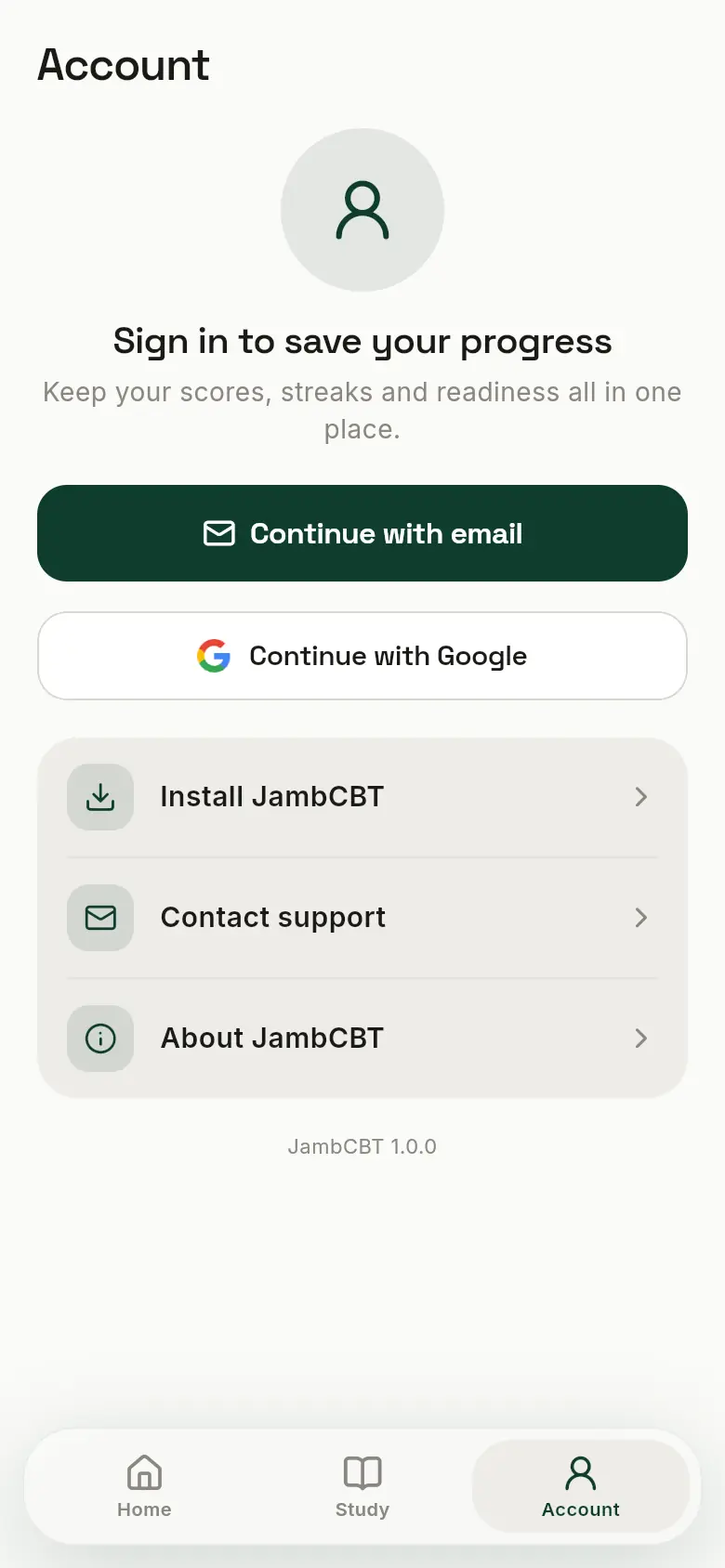
You can look around JambCBT without an account. To save your scores, streaks and progress, create one: open jambcbt.app and tap Account at the bottom.
 1
2
3
1
2
3
- 1Continue with email: sign up with your email address and a password.
- 2Continue with Google: one tap if you have a Gmail or Google account. No password to remember.
- 3About JambCBT → How JambCBT works opens this guide whenever you need it.
 1
2
3
4
1
2
3
4
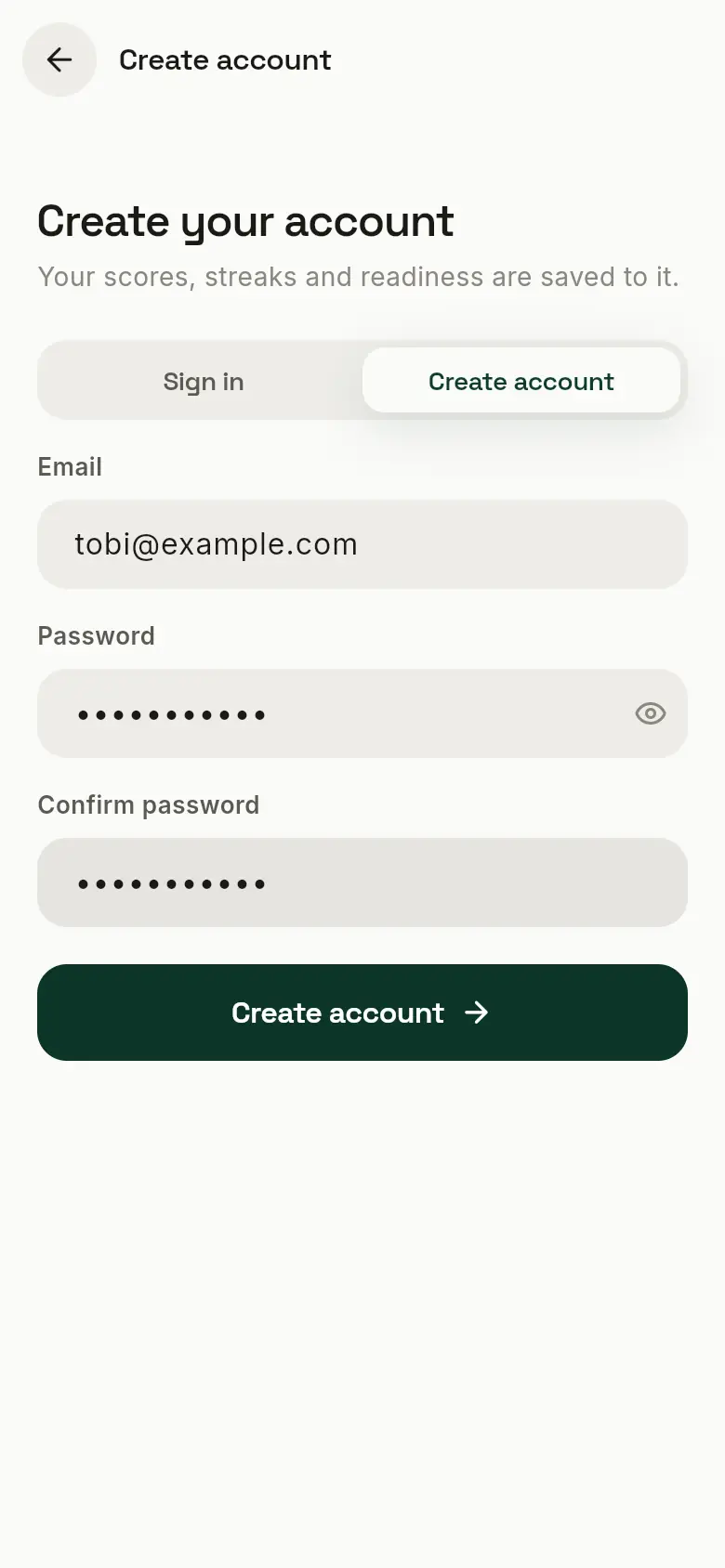
- 1Choose Create account the first time, and Sign in after that.
- 2Use an email you can open: if you forget your password, the link to reset it goes there.
- 3Your password needs at least 8 characters. Tap the eye to see what you typed.
- 4Tap Create account.
Forgot your password? On the Sign in tab, tap Forgot password? and we’ll email you a link to choose a new one.
 1
2
3
1
2
3
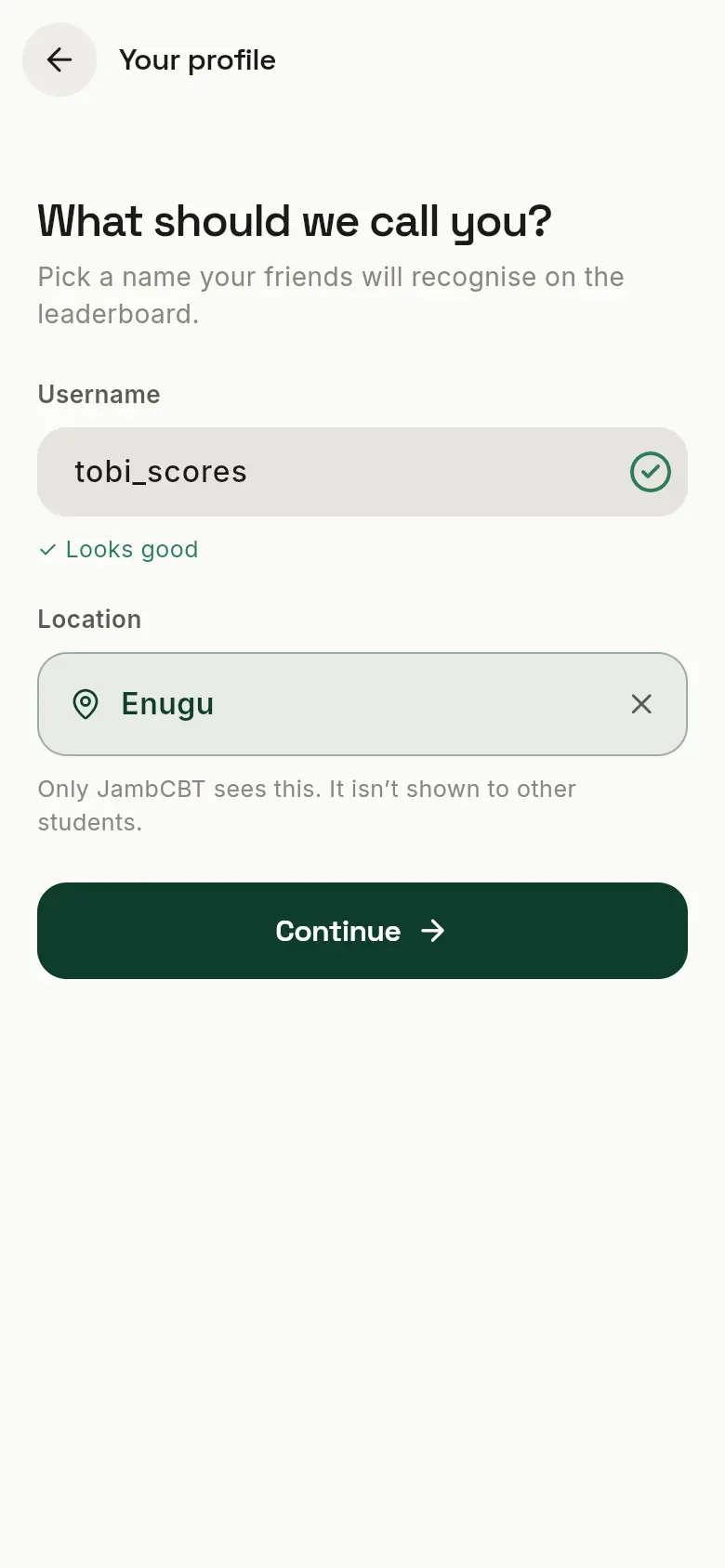
- 1Username: the name other students see on leaderboards and challenges. 3 to 20 letters, numbers or underscores. A green tick means it’s free.
- 2Location: your state or its capital. Only JambCBT sees this.
- 3Tap Continue.
2. Choose your subjects
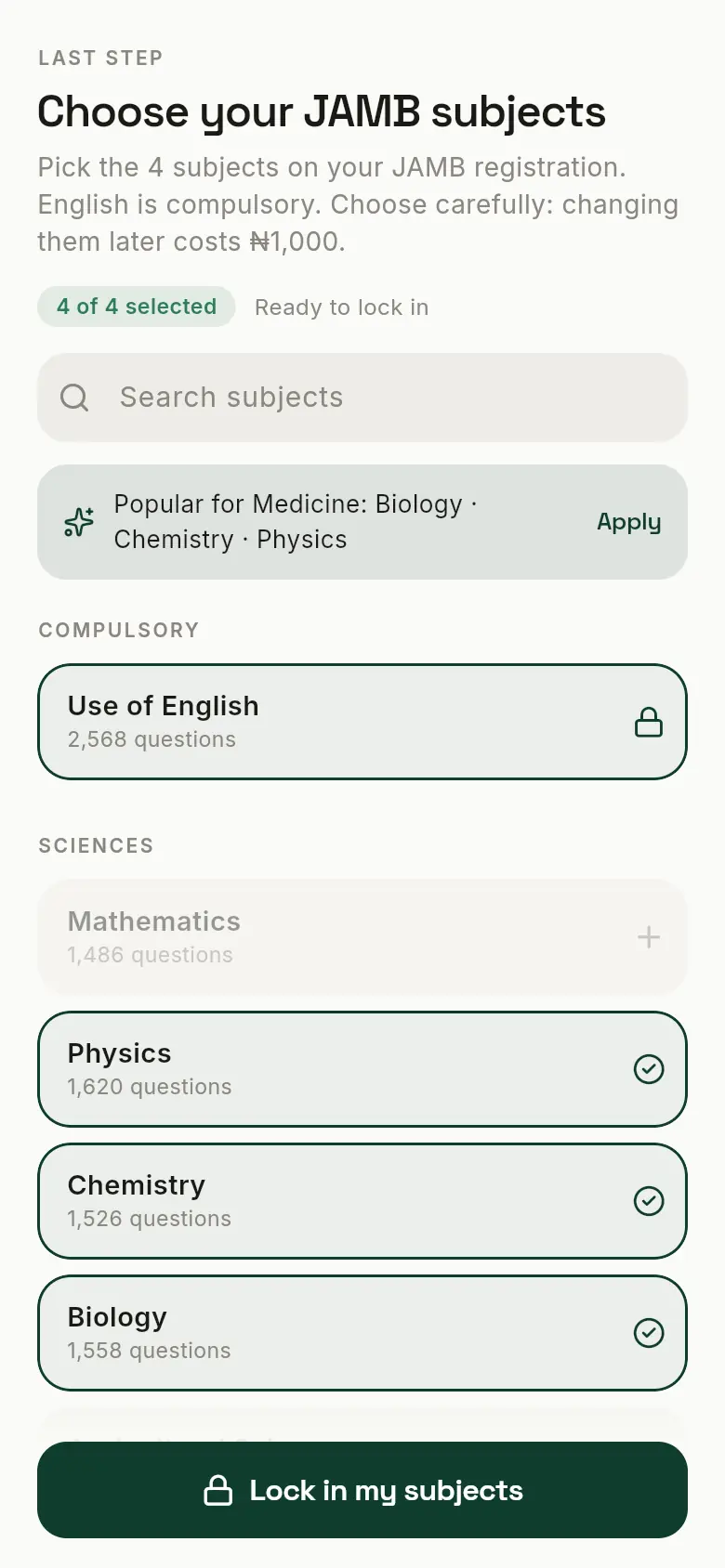
Pick the four subjects on your JAMB registration. Your Study page, CBT mocks and challenges are built around them.
 1
2
3
4
5
1
2
3
4
5
- 1How many you’ve picked. You need English plus three more.
- 2A shortcut for a popular course, for example Medicine. Tap Apply to tick all of its subjects at once.
- 3Use of English is compulsory, so it’s already in.
- 4Tap a subject to tick it, and again to untick it.
- 5When you have four, tap Lock in my subjects.
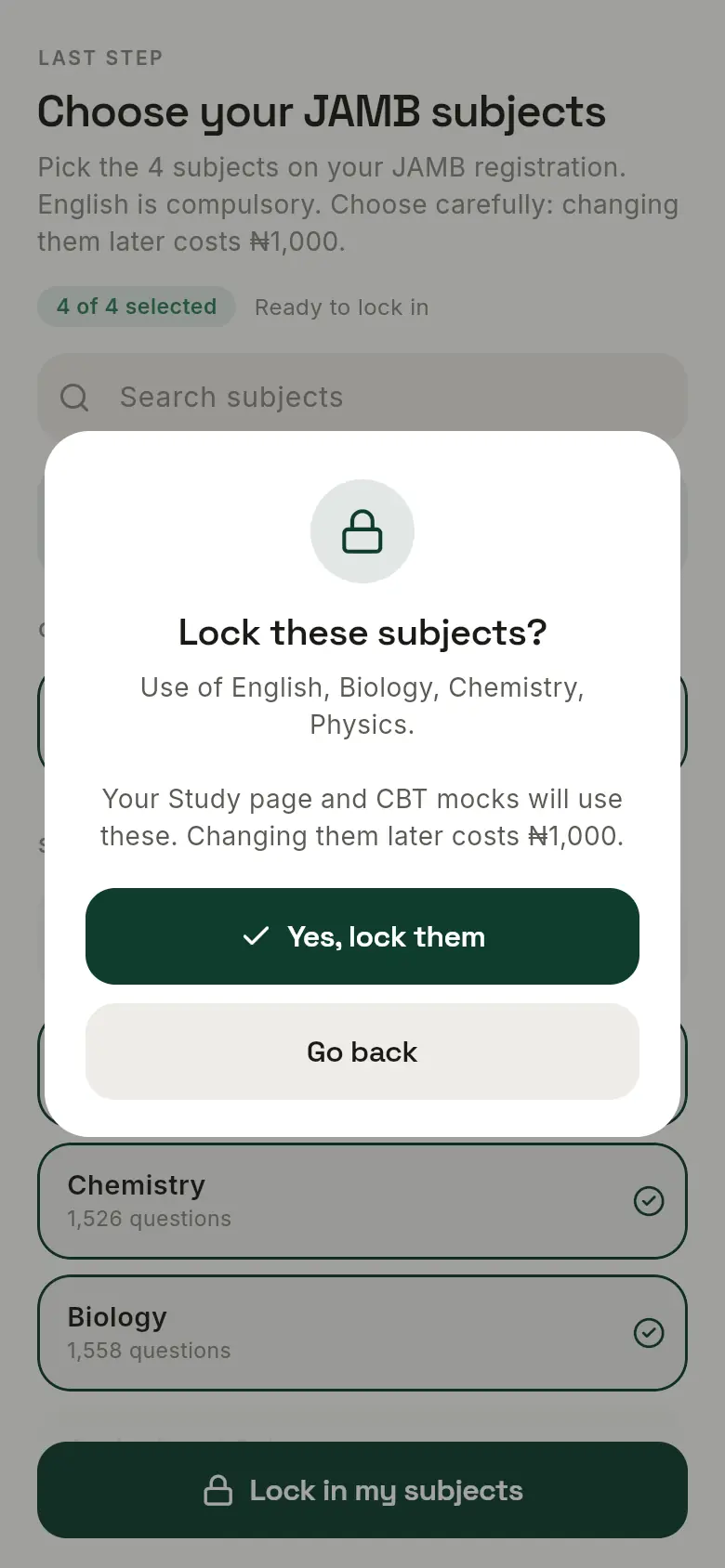 1
2
3
1
2
3
- 1Check that these match your JAMB registration.
- 2Yes, lock them to finish signing up.
- 3Go back if you want to change something first.
Choose carefully. Changing your subjects later costs a fee (the box shows how much). You can do it from Account → Manage subjects.
3. The home page
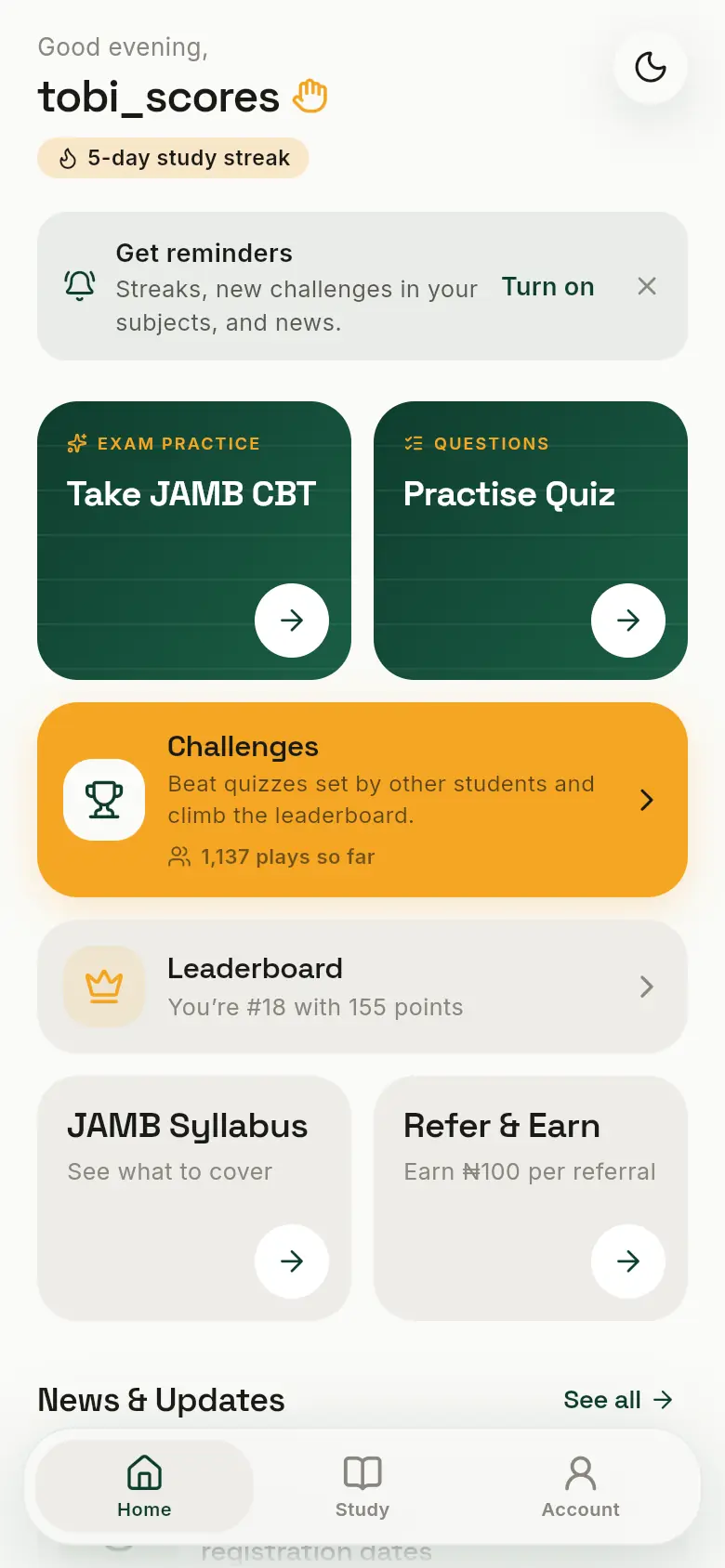
Home is where you start each day. The bar at the bottom takes you to Home, Study and Account from anywhere.
 1
2
3
4
5
6
1
2
3
4
5
6
- 1Your study streak: how many days in a row you’ve practised. Do a little every day to keep it going.
- 2Get reminders: turn on notifications (see section 10).
- 3Take JAMB CBT: a full mock exam in your four subjects.
- 4Practise Quiz: a quick test in one subject.
- 5Challenges set by other students.
- 6The Leaderboard, and your place on it.
 1
2
3
1
2
3
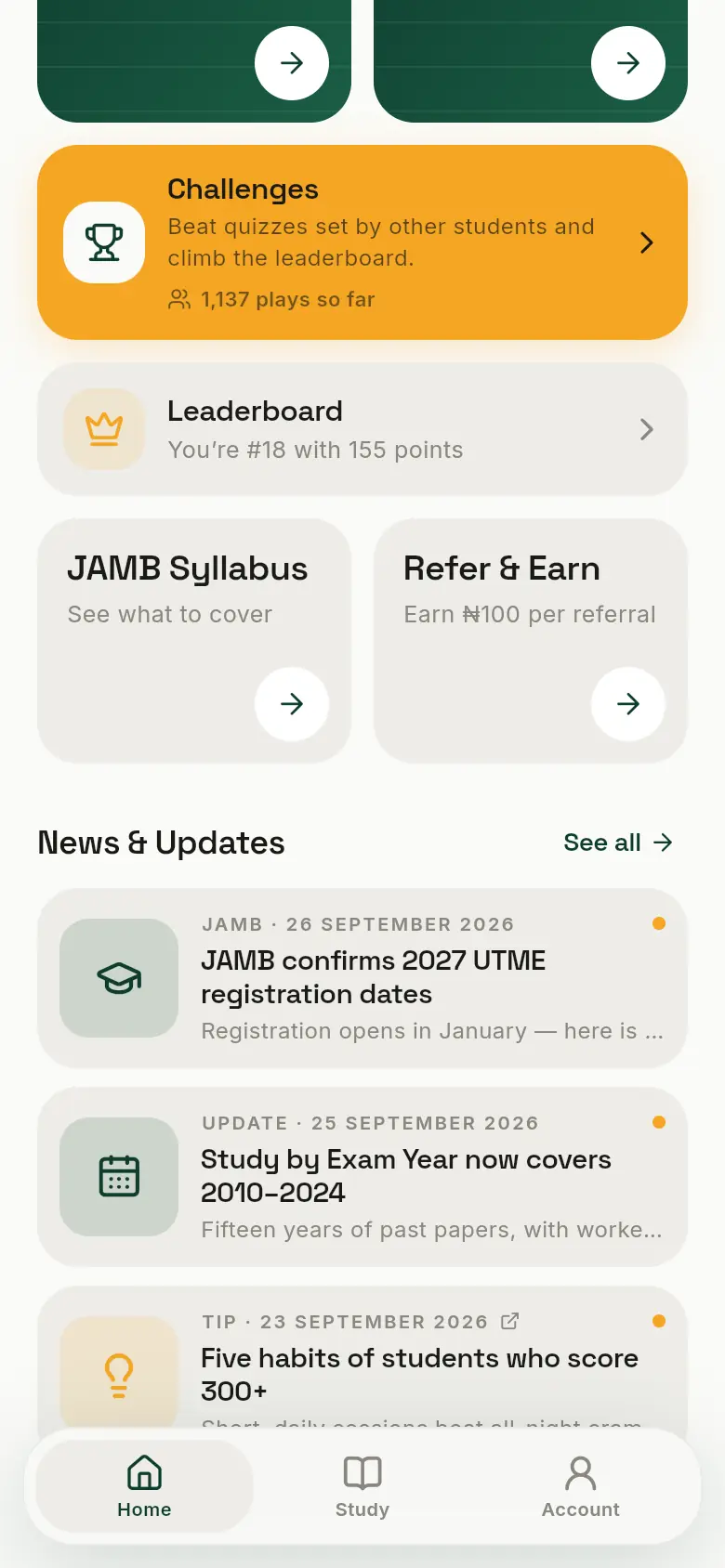
- 1JAMB Syllabus: the official syllabus for each subject, so you know what to cover.
- 2Refer & Earn: share your link, and earn money for each friend who buys Premium.
- 3News & Updates: JAMB news, exam tips and JambCBT updates. An orange dot means you haven’t read it yet.
4. Study
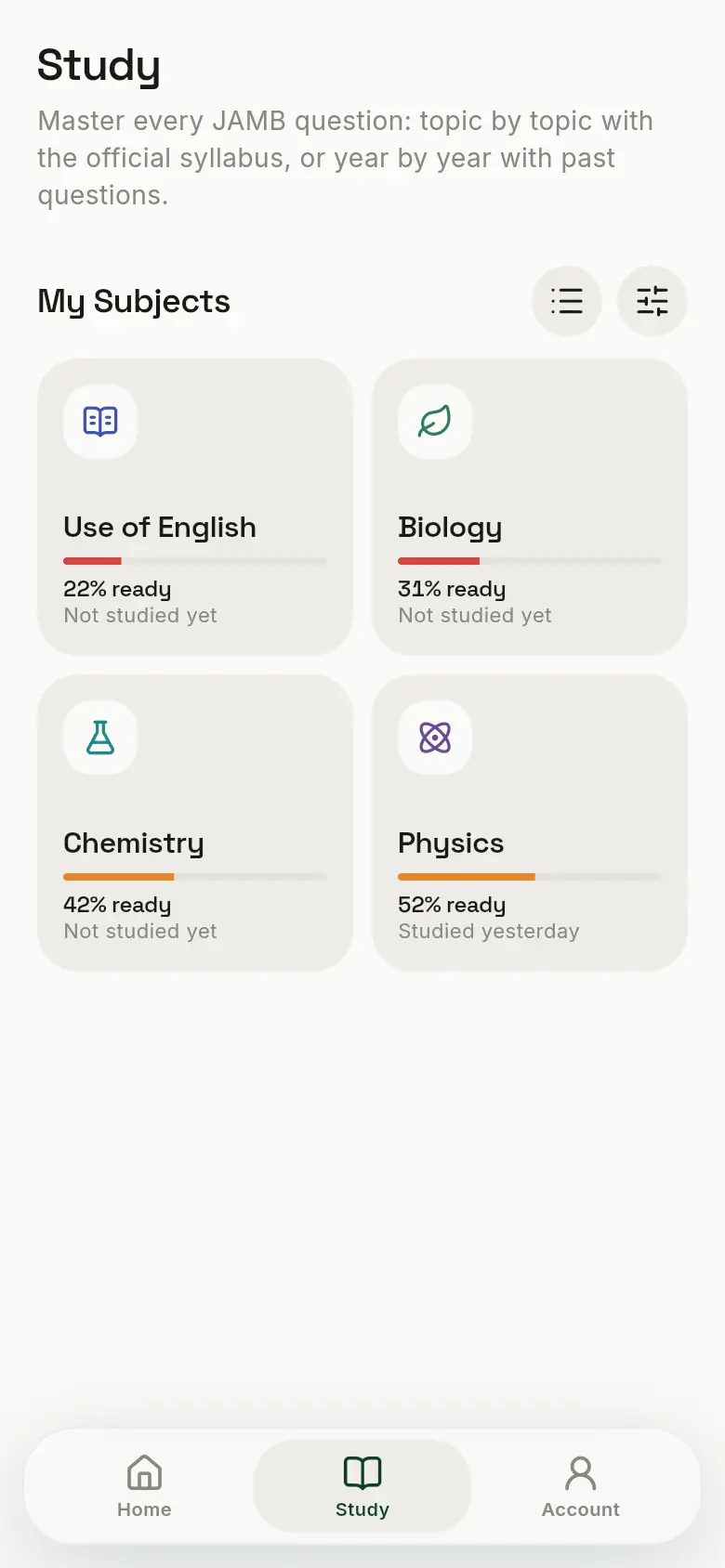
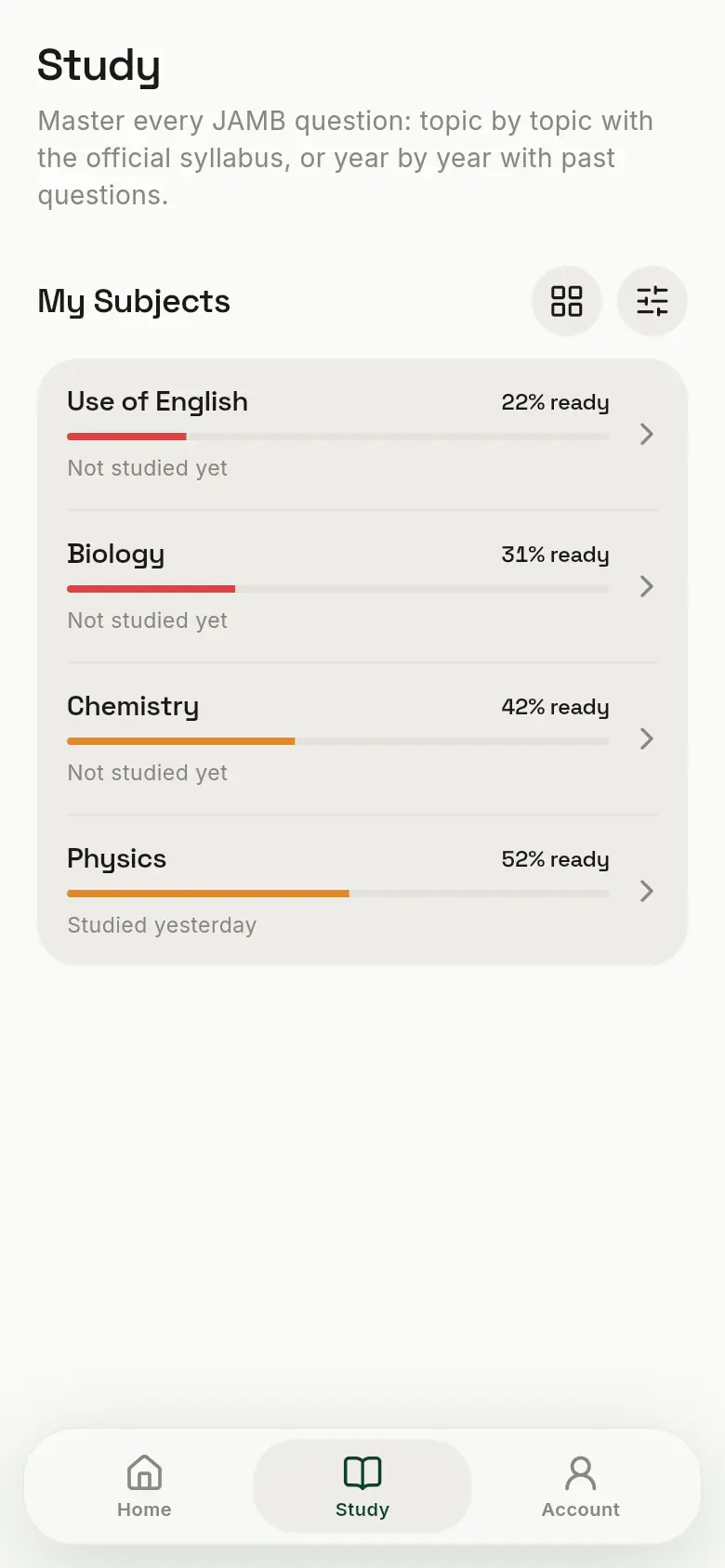
Study is where you learn. Each question shows its answer and a worked solution straight away: there are no options to pick and no timer. Test yourself afterwards with a quiz or a CBT mock.
 1
2
3
1
2
3
 4
4
- 1Show your subjects as a grid (left) or a list (right). JambCBT remembers your choice.
- 2See or change your subjects.
- 3One card per subject, showing how ready you are and when you last studied it. Tap a subject to open it.
- 4The same in the list: a row per subject.
 1
2
3
4
5
1
2
3
4
5
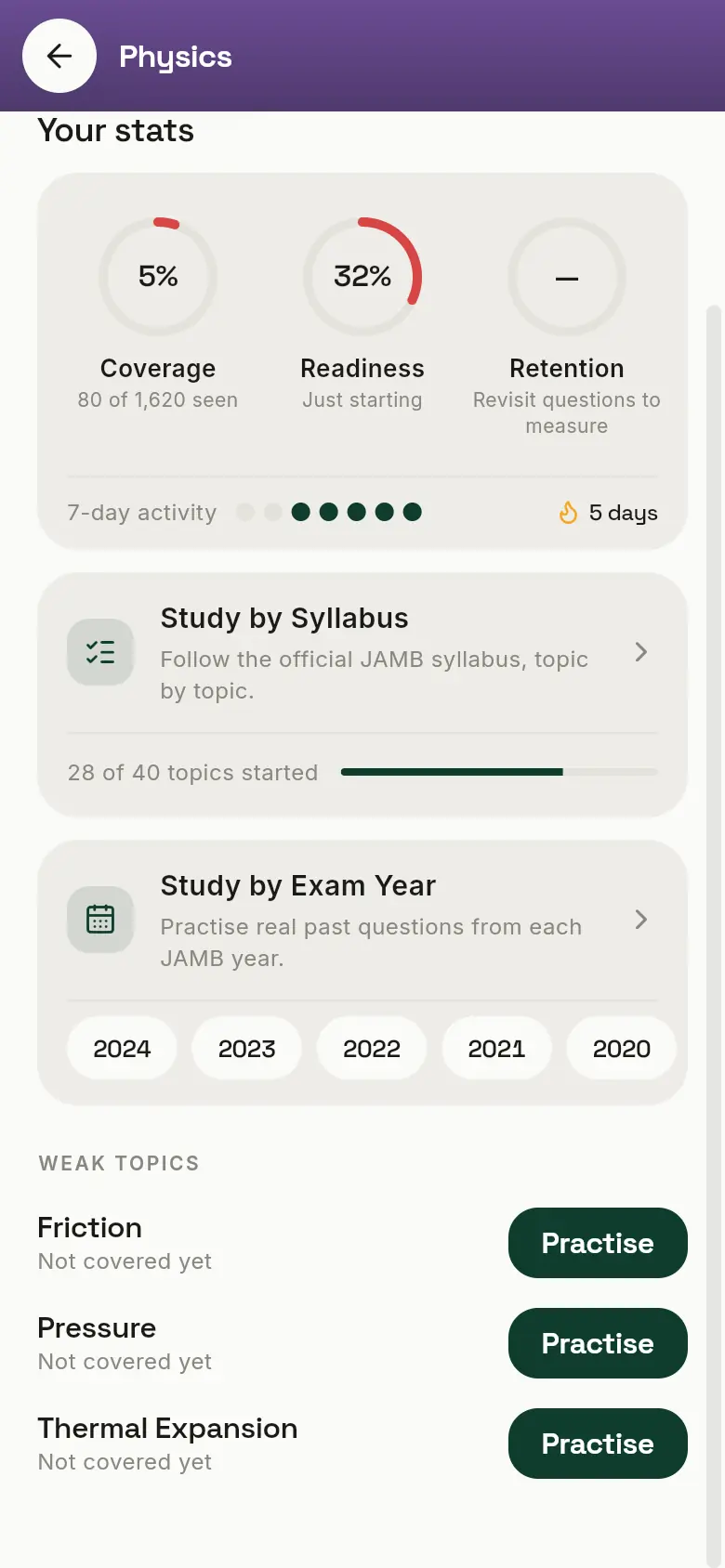
- 1Study by Syllabus: the official JAMB syllabus, topic by topic. The best way to cover everything.
- 2How many topics you’ve started.
- 3Study by Exam Year: real past papers, one JAMB year at a time.
- 4Tap a year to study its questions.
- 5Weak topics: the topics you’ve covered least or score lowest in. Practise takes you straight there.
The top of this page has your stats for the subject (see Your progress). The Tutorials and Notes tabs are coming soon.
 1
2
3
4
5
1
2
3
4
5
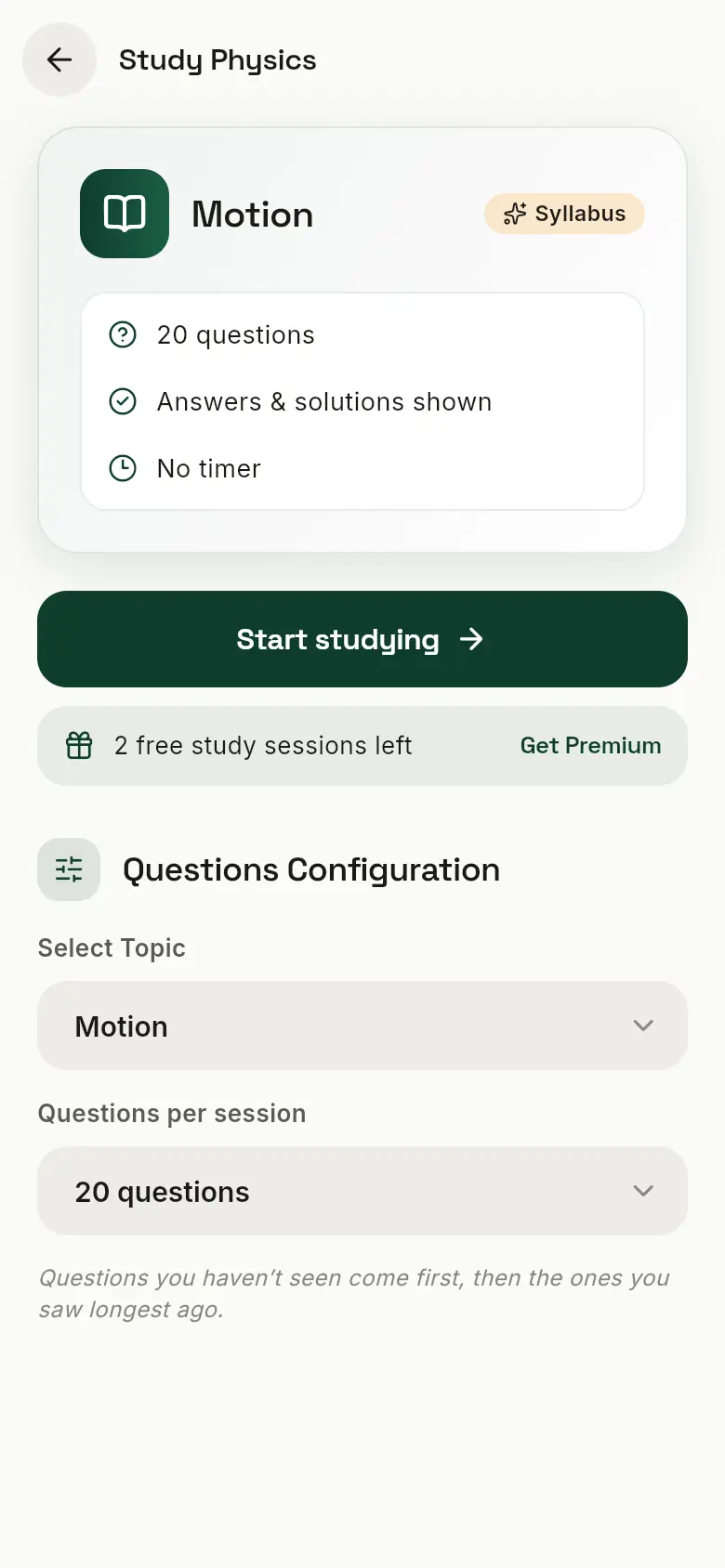
- 1What you’re about to study: the topic (or year), how many questions, and the reminder that answers are shown.
- 2Start studying.
- 3Free study sessions you have left. With Premium, there’s no limit.
- 4Switch to another topic.
- 5How many questions per session.
Questions you haven’t seen come first, then the ones you saw longest ago. So each session brings something new.
 1
2
3
4
5
6
1
2
3
4
5
6
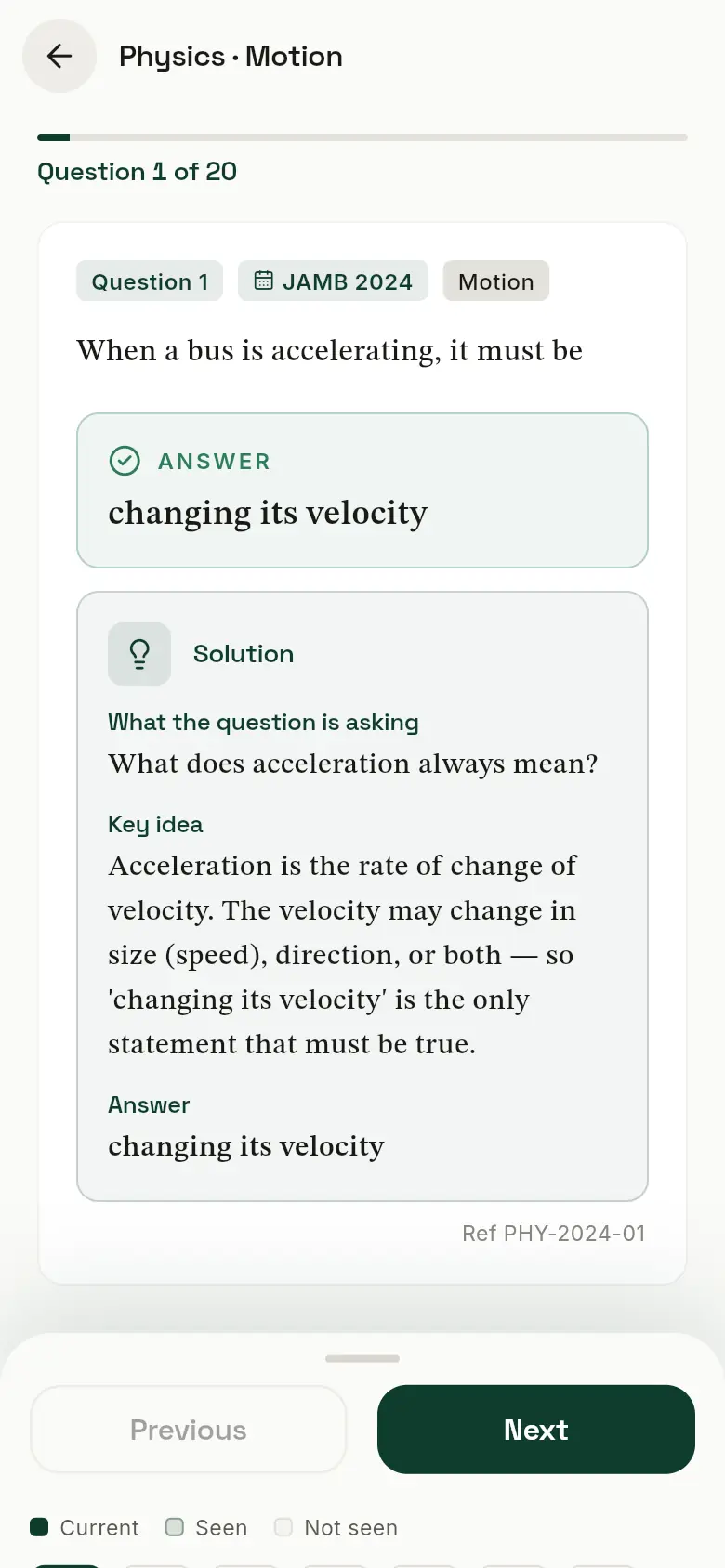
- 1The question number, the JAMB year it came from, and its topic.
- 2The correct answer.
- 3The worked solution: what the question is asking, the key idea, and the steps to the answer.
- 4The question’s reference (PHY-2024-01 here). Tap to copy it. If a question looks wrong, send us the reference.
- 5Next and Previous.
- 6Drag this panel up to see every question in the session and jump to any of them.
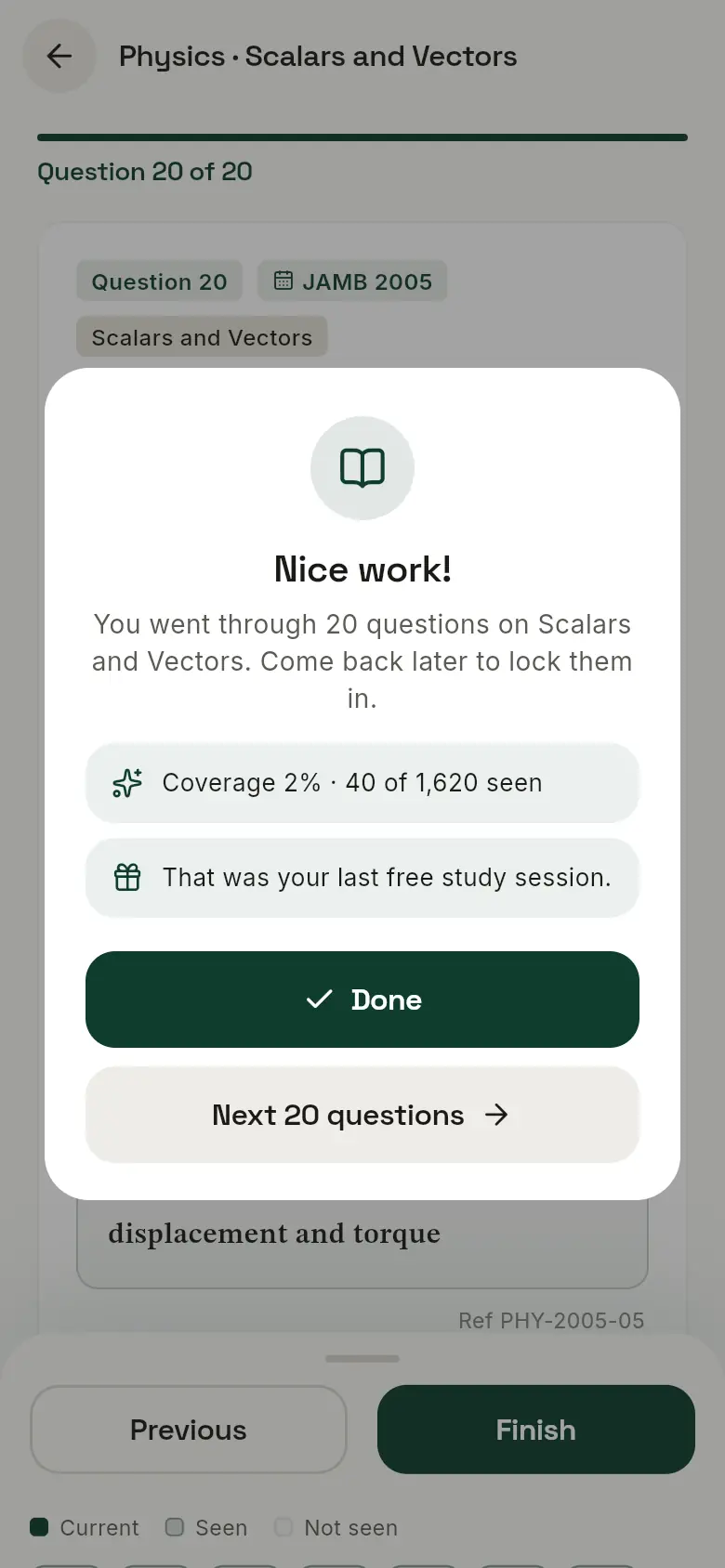 1
2
3
4
1
2
3
4
- 1How much of the subject you’ve now seen (your Coverage).
- 2A note when that was your last free session.
- 3Done takes you back to the subject.
- 4Next 20 questions carries on with the same topic.
5. Practise Quiz and CBT mock
Once you’ve studied, test yourself. You pick the answers, the clock runs, and you only see the solutions after you submit.
| Practise Quiz | JAMB CBT mock | |
|---|---|---|
| Subjects | One | All four of yours |
| Length | 10 to 40 questions; 10 to 30 minutes, or untimed; all topics or the ones you choose | 10, 20, 30 or 40 questions per subject, or the full exam |
| Best for | Testing a subject or topic you just studied | Practising the real exam |
| Leaderboard points | No | Yes |
| Counts towards your progress | Yes | Yes |
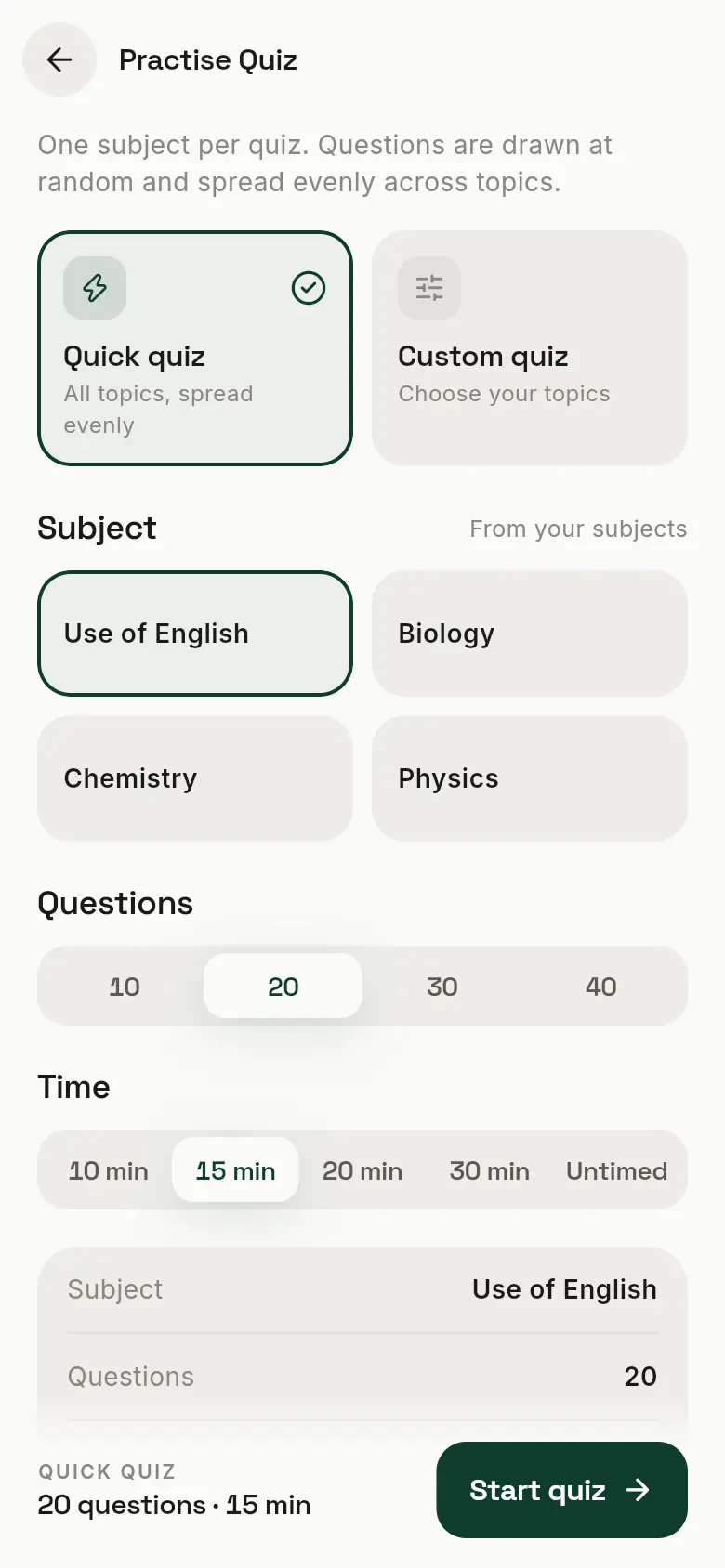 1
2
3
4
5
6
1
2
3
4
5
6
- 1Quick quiz: questions from every topic, spread evenly.
- 2Custom quiz: choose the topics yourself.
- 3Pick one of your subjects.
- 4How many questions: 10, 20, 30 or 40.
- 5How long you get: 10, 15, 20 or 30 minutes, or Untimed.
- 6Start quiz.
Every quiz is saved to your history. Quiz scores don’t count on the leaderboard, so quizzes are a safe place to practise.
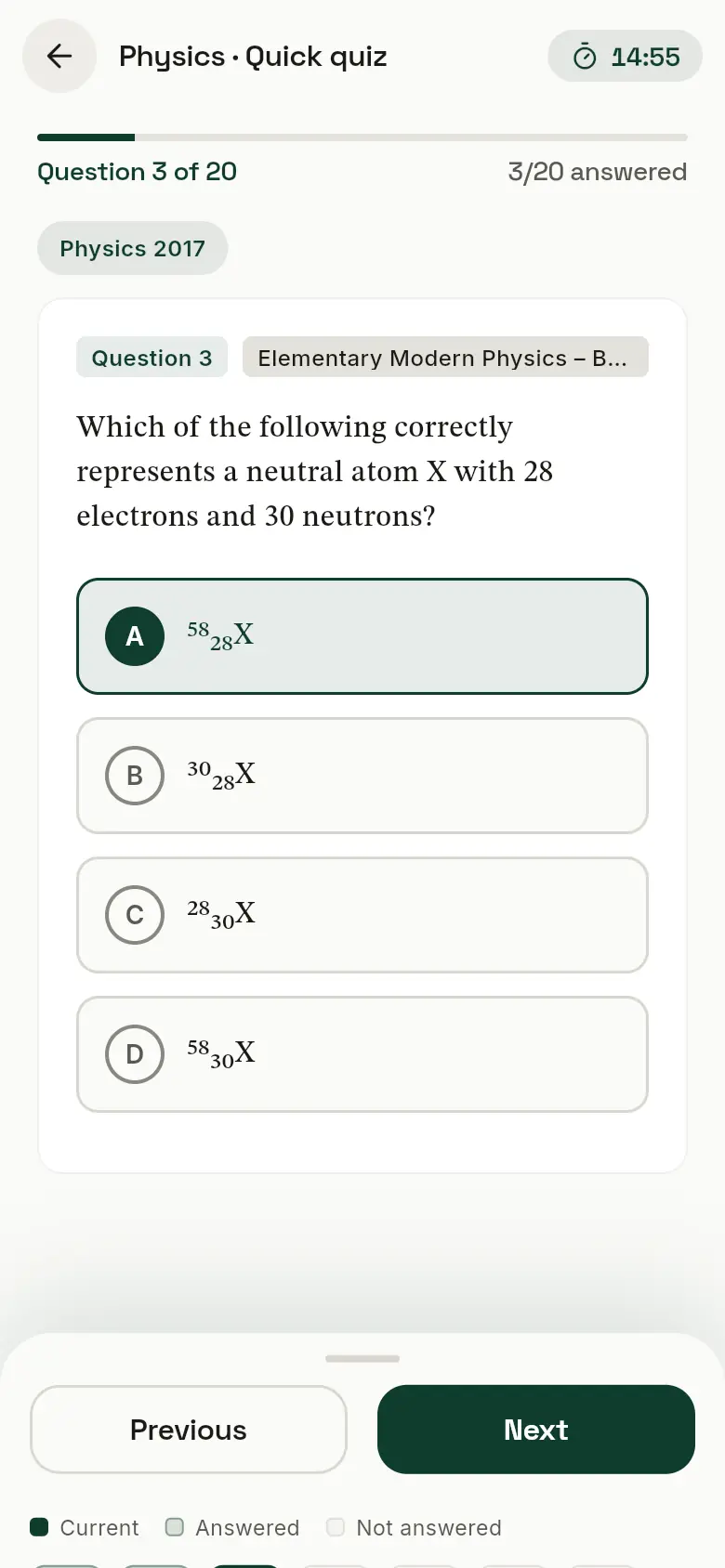 1
2
3
4
5
1
2
3
4
5
- 1Time left.
- 2How many you’ve answered so far.
- 3Tap an option to choose it. Tap another to change your mind.
- 4Move between questions. You can go back and change answers until you submit.
- 5Drag this panel up to see which questions you haven’t answered yet.
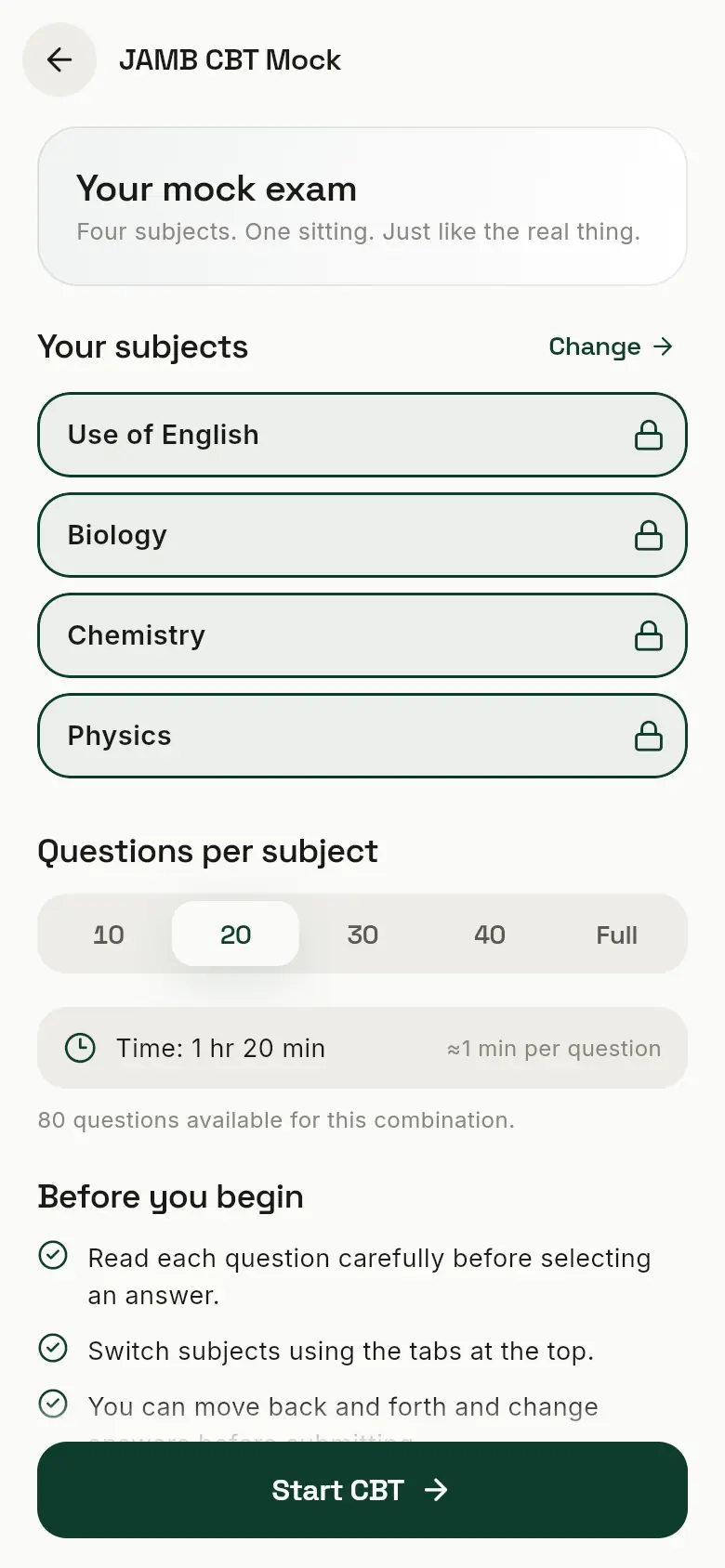 1
2
3
4
1
2
3
4
- 1Your four subjects, all in one sitting, like the real UTME.
- 2How many questions per subject. Start small, and work up to Full.
- 3The time you’ll get: about a minute per question.
- 4Start CBT.
On a computer? Press A, B, C or D to answer, and N or P for the next or previous question.
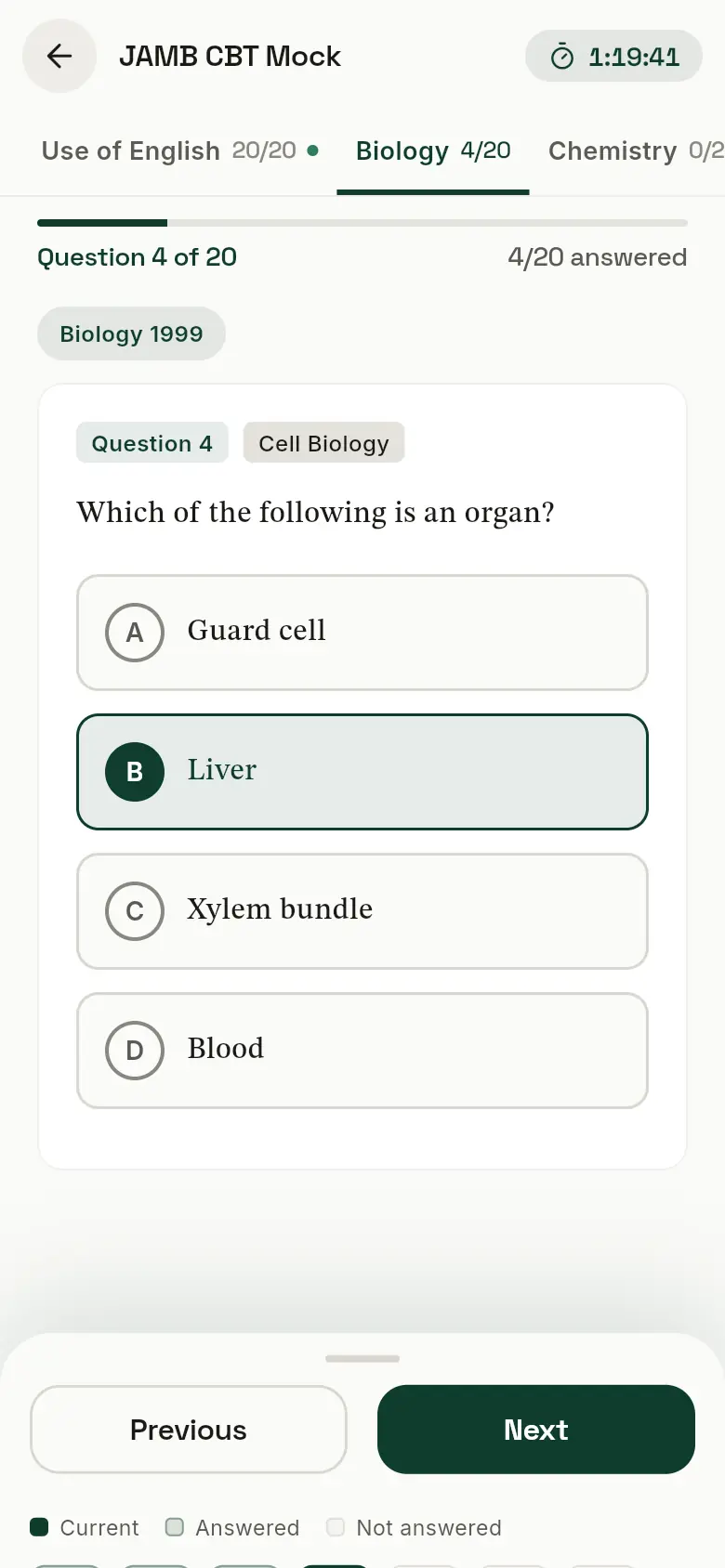 1
2
3
4
5
1
2
3
4
5
- 1Time left for the whole exam. When it runs out, your answers are submitted for you.
- 2One tab per subject, with how many you’ve answered in each. Switch any time.
- 3Your place in this subject.
- 4Your chosen answer is highlighted.
- 5Next moves through every subject in turn. After the last question, you’re asked to submit.
If you close the page by mistake, open JambCBT again and your mock carries on where you left off.
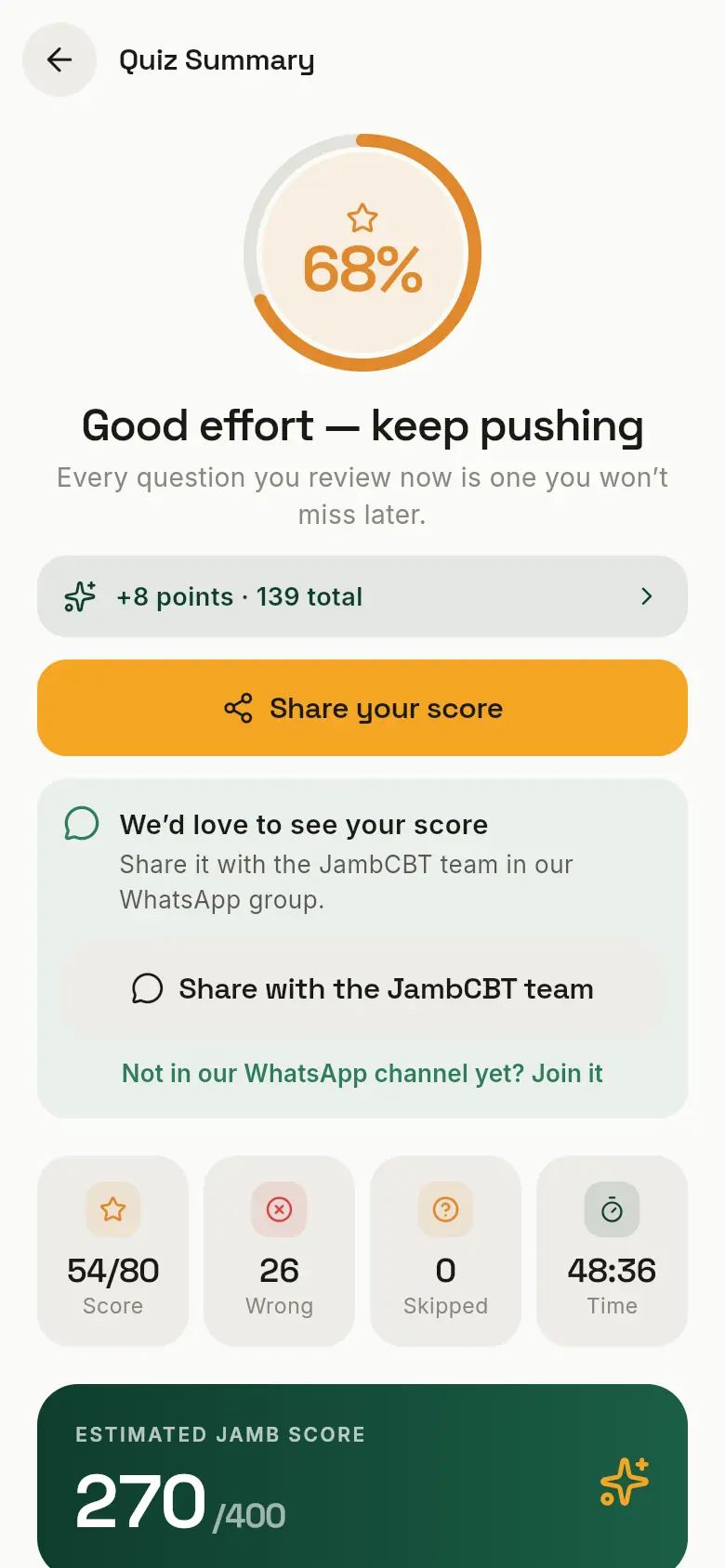 1
2
3
4
5
6
1
2
3
4
5
6
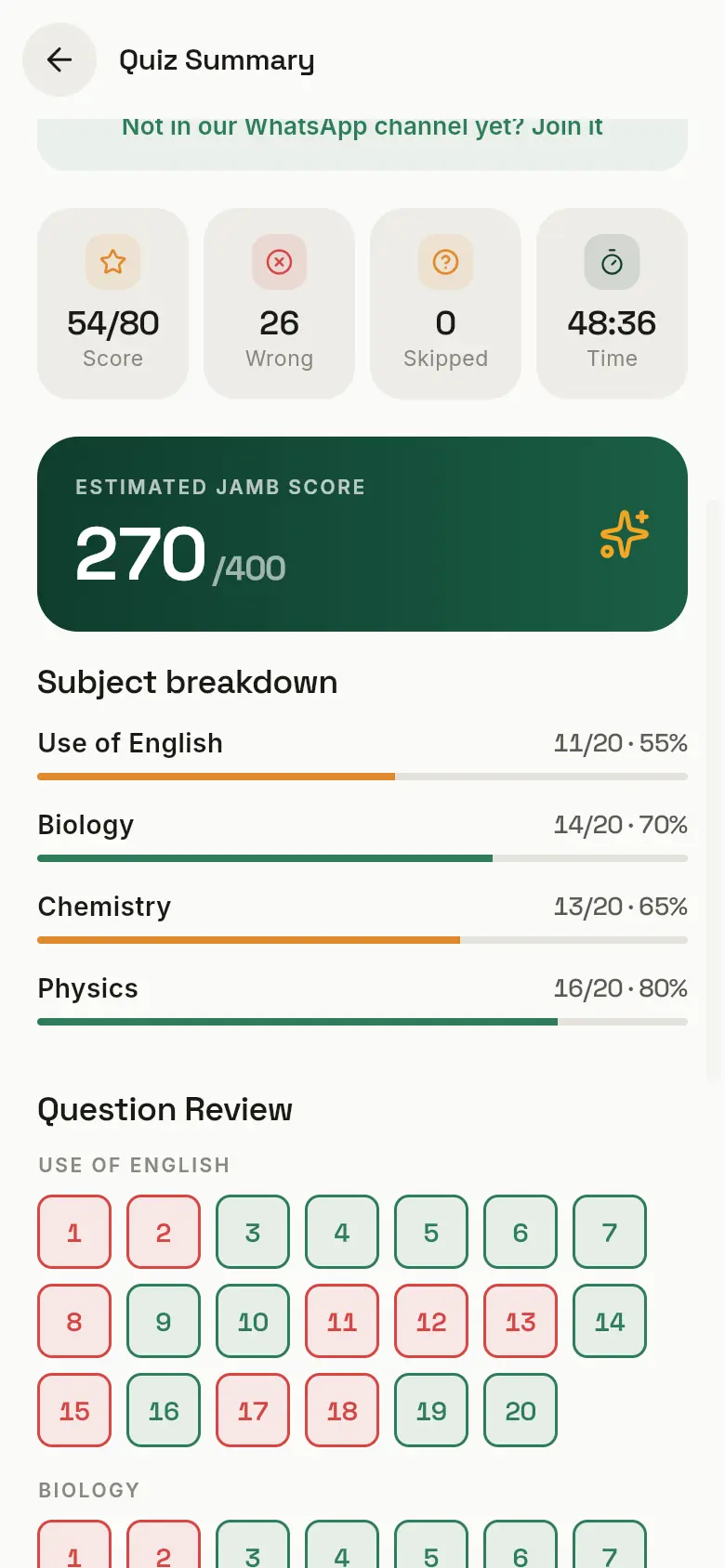 7
8
7
8
- 1Your overall score.
- 2Points you earned for the leaderboard.
- 3Share your score with friends.
- 4We’d love to see your score: share it with the JambCBT team in our WhatsApp group, or join the group if you’re not in it yet.
- 5Right, wrong, skipped, and the time you took.
- 6Your estimated JAMB score out of 400, based on this mock.
- 7How you did in each subject.
- 8Question Review: green is right, red is wrong. Tap any number to see that question.
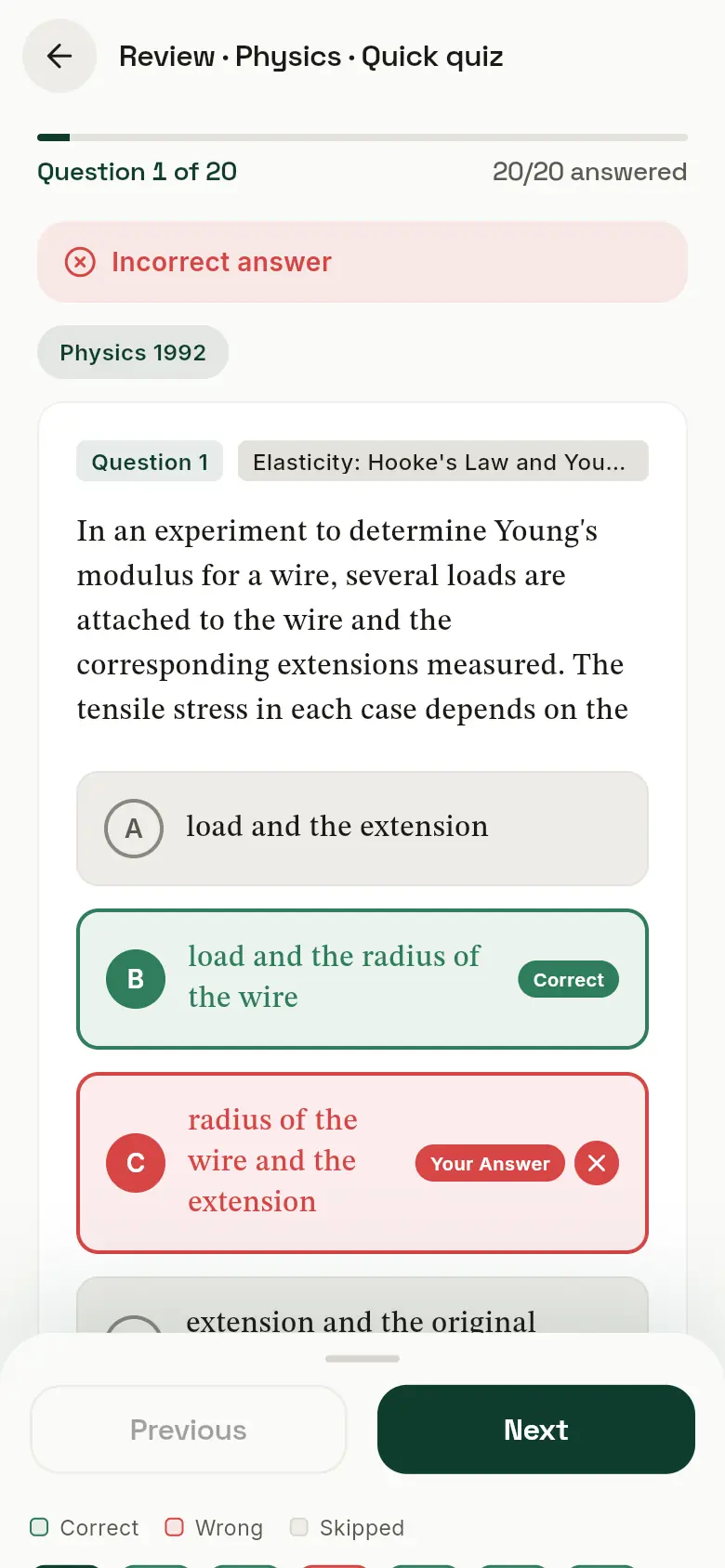 1
2
3
1
2
3
- 1Whether you got it right.
- 2The correct answer, in green.
- 3Your answer, in red if it was wrong.
Scroll down and tap View Solution for the worked solution. Reviewing your mistakes is where most of the learning happens.
6. Challenges
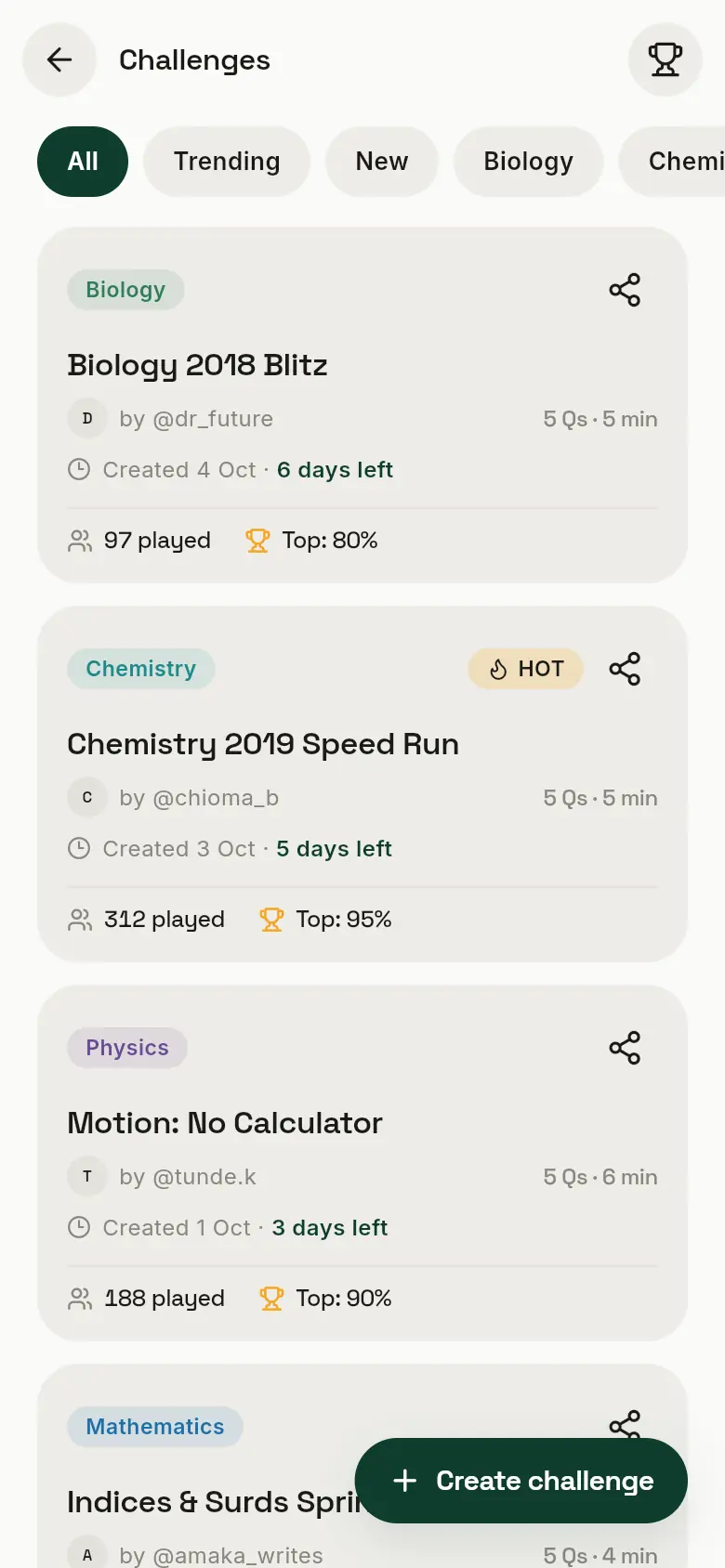
Challenges are short quizzes set by other JambCBT students. Everyone gets the same questions, and the best scores top the challenge’s leaderboard.
 1
2
3
4
5
1
2
3
4
5
- 1Filter: all, trending, new, or one subject.
- 2Each card shows the name, who made it, how many questions, the time, and how long it stays open.
- 3HOT: a popular challenge, played by 20 or more students.
- 4How many have played, and the top score so far.
- 5Create challenge: make your own, once you have enough points.
 1
2
3
1
2
3
 4
5
6
4
5
6
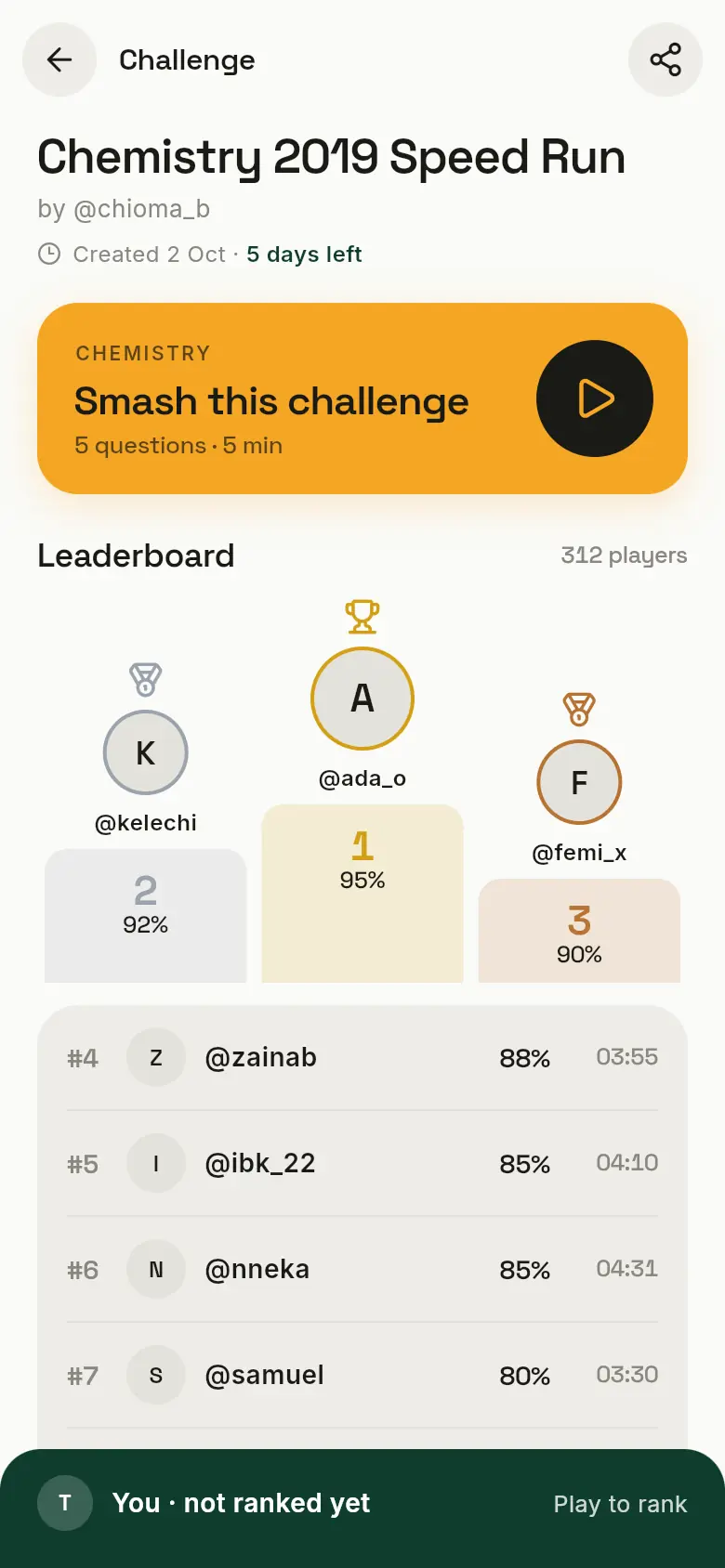
- 1Smash this challenge to start. The clock starts at once.
- 2The challenge’s leaderboard: highest score first, and the faster time if scores are equal.
- 3Where you’ll appear once you’ve played.
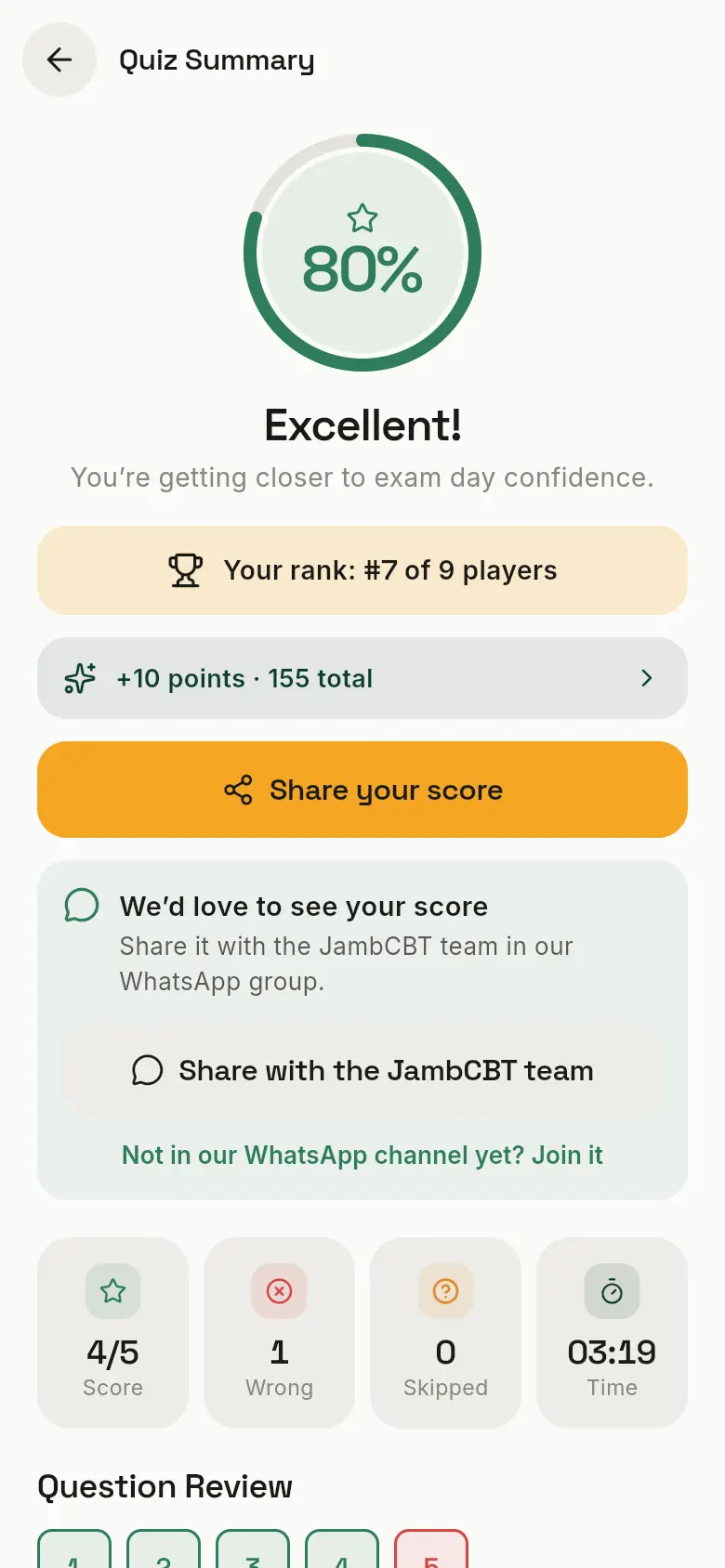
- 4Your rank among everyone who played it.
- 5Points earned. Only your first attempt at each challenge earns points.
- 6Share your score with the JambCBT team on WhatsApp.
Further down, Challenge a friend sends them the link, and Retake lets you play again for practice (it won’t change your points).
Creating your own challenge
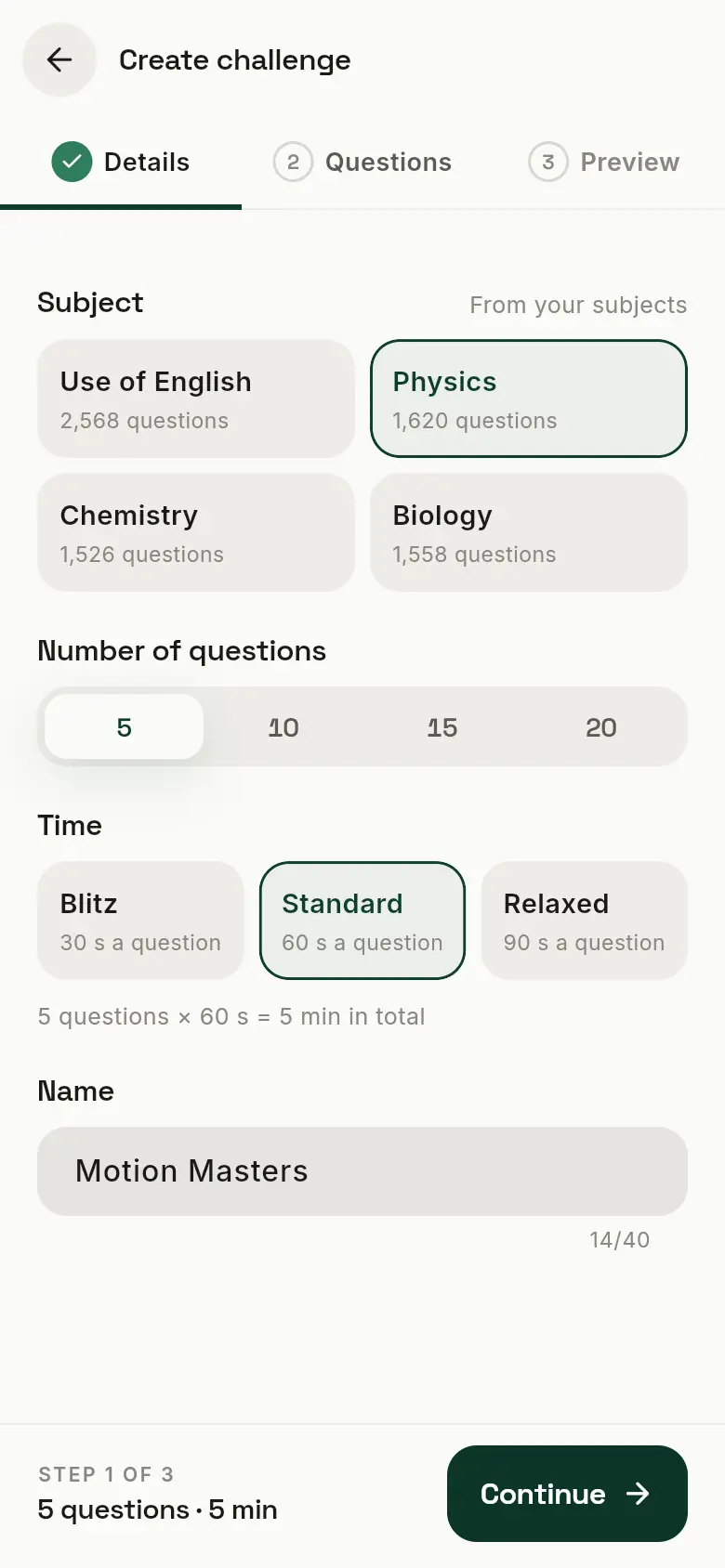
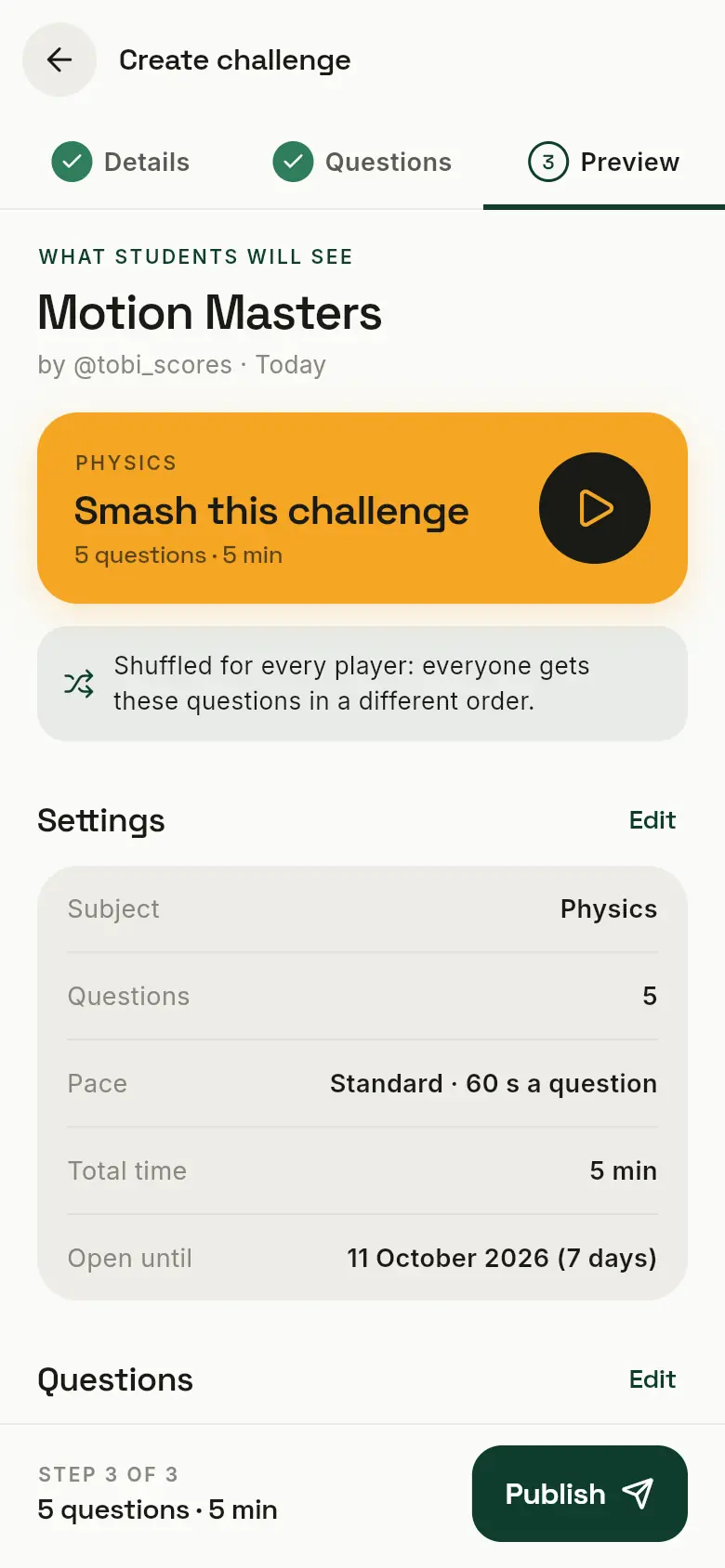
When you reach 100 points, you can set challenges for other students. It takes three steps.
 1
2
3
4
1
2
3
4
 5
6
7
5
6
7
- 1The subject.
- 2How many questions: 5 to 20.
- 3The pace: Blitz (30 s a question), Standard (60 s) or Relaxed (90 s).
- 4A name players will see. Then Continue, and tick your questions (or tap Pick for me).
- 5What students will see.
- 6Every player gets the questions in a different order, so answers can’t be passed around.
- 7Publish. The challenge stays open for a week.
You earn points when your challenge ends, for how often players got its questions wrong (counting up to 50 players, and at least 5 must play). Tricky but fair questions earn the most.
7. Leaderboard and points
 1
2
3
4
1
2
3
4
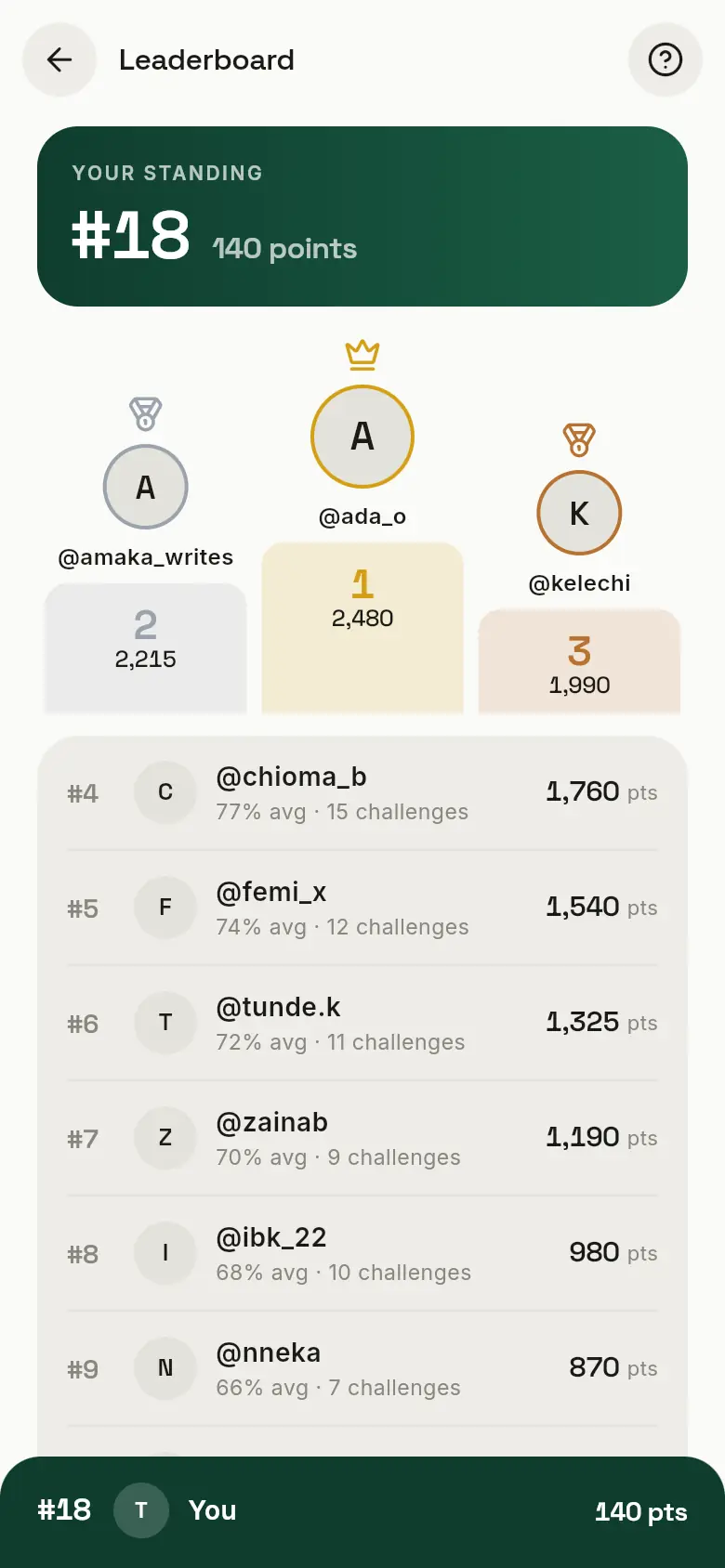
- 1Your rank and your points.
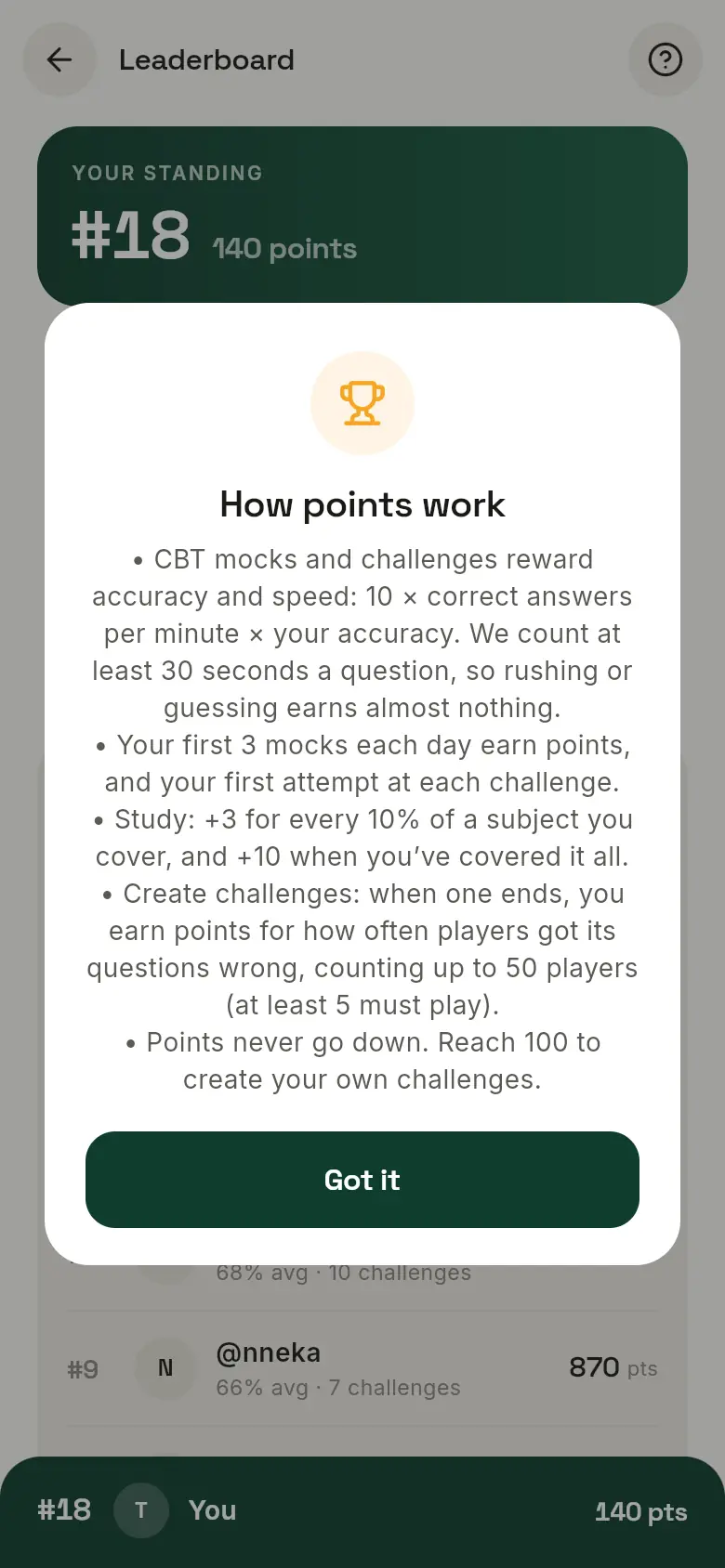
- 2How points work (shown on the right).
- 3The top three students.
- 4Your own row, always at the bottom, so you can see where you are.
How to earn points:
- CBT mocks and challenges reward accuracy and speed: points = 10 × correct answers per minute × your accuracy. Every question counts as at least 30 seconds, so rushing or guessing earns almost nothing, and a perfect paper at that pace earns 20. Your first 3 mocks each day earn points, and your first attempt at each challenge.
- Study: 3 points for every 10% of a subject you cover, and 10 more when you’ve covered it all, so up to 40 a subject.
- Creating challenges: when your challenge ends, points for how hard it was. At least 5 students must play it; you earn the share they got wrong × the number of players, counting up to 50. If 10 students play and get 60% wrong, you earn 6.
- Points never go down. Practise Quizzes don’t earn points.
8. Your progress
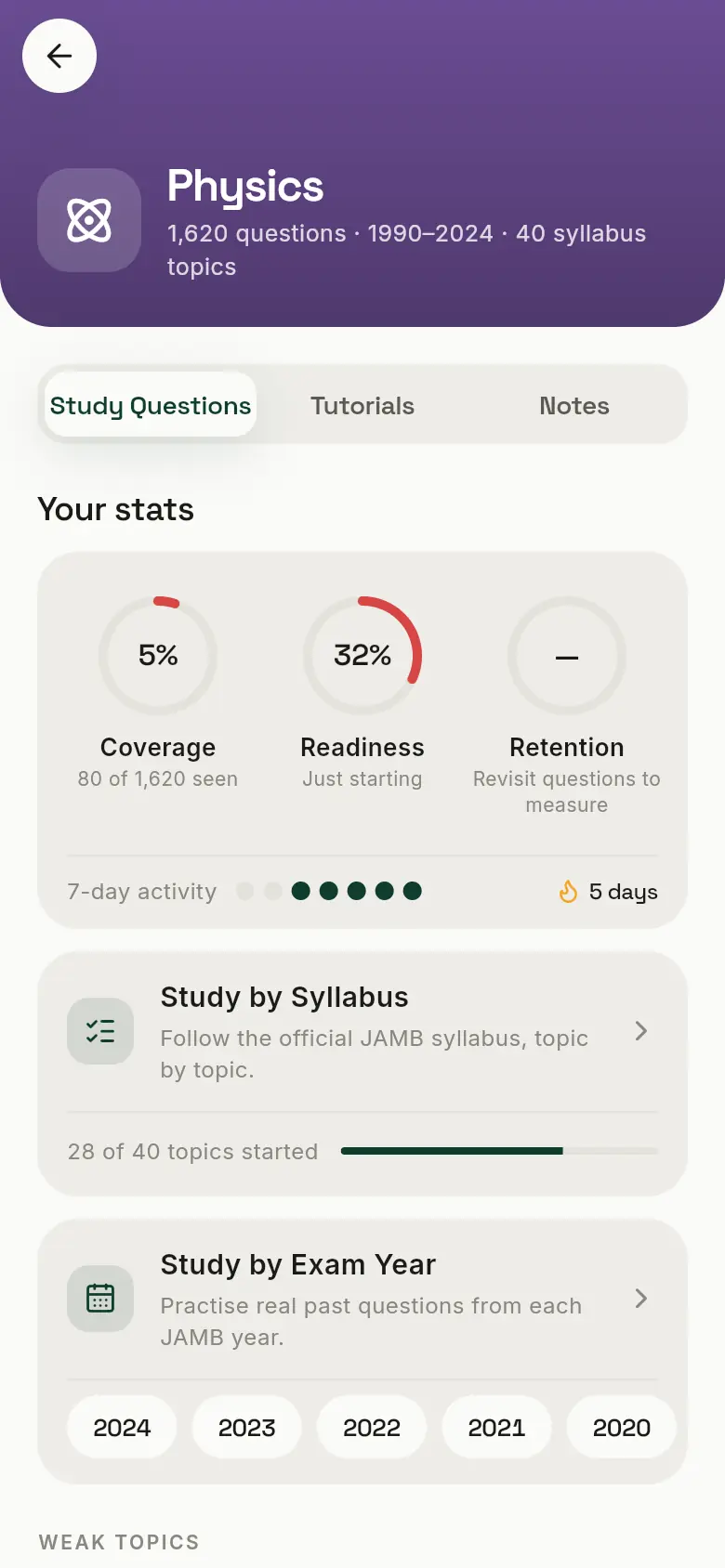
Open any subject from the Study tab to see three numbers. Together they tell you what to do next.
 1
2
3
4
1
2
3
4
- 1Coverage: how much of the subject’s question bank you’ve seen, in Study or in any test. Here, 80 of 1,620 questions.
- 2Readiness: how ready you are for this subject. It’s mostly your accuracy in quizzes, CBT mocks and challenges, topic by topic, plus a share for coverage. It grows as you answer more, so a few lucky answers can’t make it jump.
- 3Retention: how much you remember. When a quiz, mock or challenge gives you a question you studied a day or more before, that’s a memory check. Retention shows “—” until you’ve had 10 checks in the subject.
- 4The days you practised this week, and your streak.
What to do next: low Coverage? Study new topics. Coverage good but Readiness low? Take quizzes and mocks, and review your mistakes. Retention low? Revisit topics you studied a while ago.
How the numbers are worked out
Coverage is the questions in the subject you’ve seen at least once, anywhere (Study, Practise Quiz, CBT mock or challenge), out of all the subject’s questions. Seeing a question again doesn’t add to it.
Readiness (the “% ready” on the Study tab) is worked out in three steps:
- Your accuracy, topic by topic. Only answers in Practise Quizzes, CBT mocks and challenges count. Study shows you the answers, so it doesn’t count here. Each topic counts as much as JAMB tests it: a topic with many past questions matters more than a rare one.
- Scaled by how many answers it rests on. It counts in full once you’ve answered 60 questions in the subject. Before that it’s scaled down, so after 30 answers it counts half.
- Mixed with Coverage: 70% from that accuracy, 30% from Coverage.
Example: you’ve answered 30 questions in a subject and got 80% right, and you’ve seen 10% of its questions. Readiness = 80 × ½ × 0.7 + 10 × 0.3 = 28 + 3 = 31% ready. Answer 30 more at 80% and it becomes 56 + 3 = 59%.
The label under Readiness follows the number: Just starting below 40%, Getting there from 40%, Almost ready from 60%, and Exam ready from 80%.
Retention checks what you remember. When a quiz, mock or challenge gives you a question you studied at least 20 hours before, your answer is a memory check. Retention is mostly (85%) the share of those checks you got right, plus a little (15%) for how many of the last 14 days you practised. It shows “—” until you’ve had 10 checks in the subject.
Your streak is the number of days in a row you’ve practised: studying a question or finishing a quiz, mock or challenge, in any subject. Today counts once you practise; until then, a streak that reached yesterday still stands.
Your estimated UTME score, at the end of a CBT mock, is your average percentage across the mock’s subjects × 4, out of 400. It’s a guide to how the same performance would score in the UTME, not a prediction.
Points are explained in Leaderboard and points.
Good to know: Coverage, Readiness, Retention and your streak are kept on the device you practise on, and signing out clears them there. Your account, Premium and points are kept in your account, wherever you sign in.
9. Free tries, Premium and paying
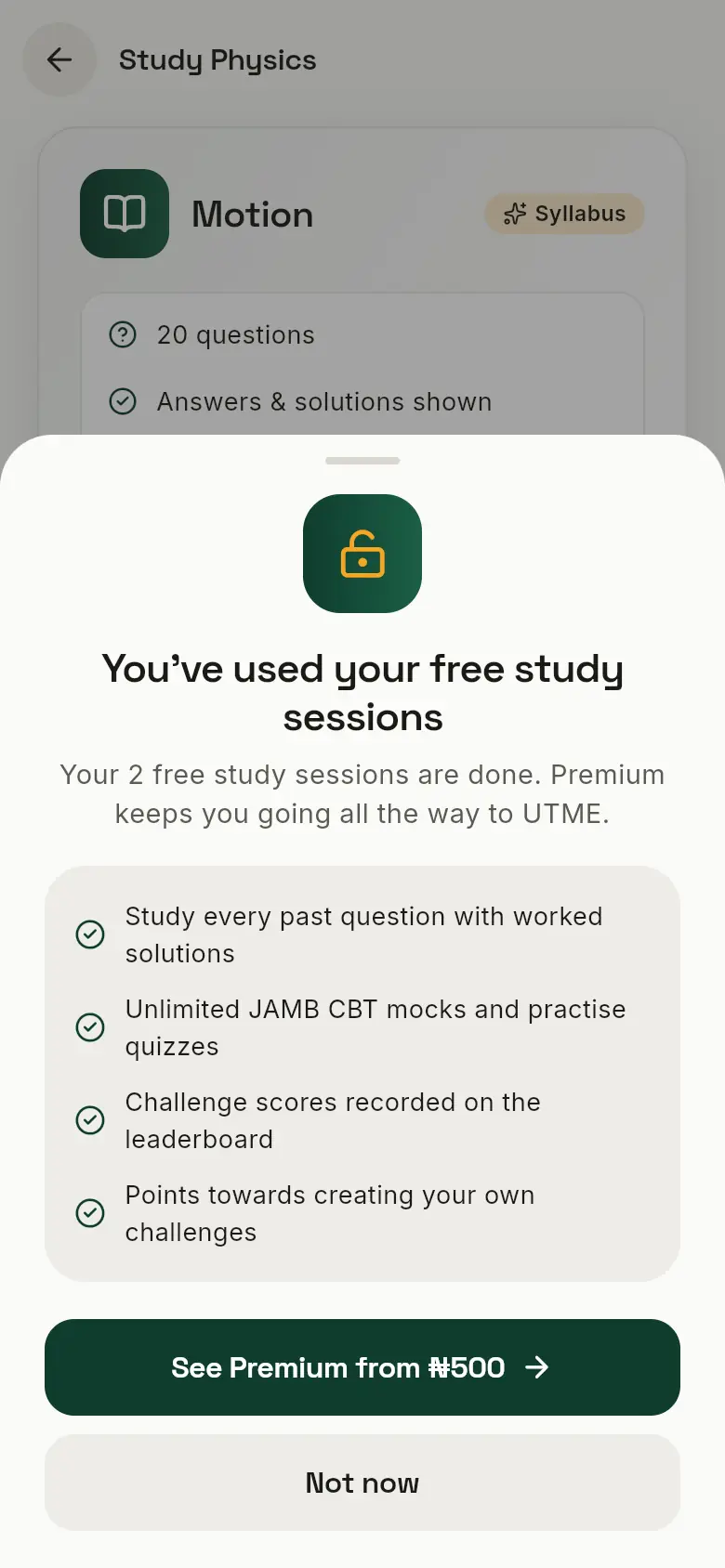
Everyone gets free tries of Study sessions, CBT mocks, Practise Quizzes and challenges. When they run out, JambCBT Premium unlocks everything until it ends.
 1
2
1
2
 3
4
5
6
3
4
5
6
- 1When a free try runs out, JambCBT tells you.
- 2See Premium opens the Premium page. You can also find it under Account → Get JambCBT Premium.
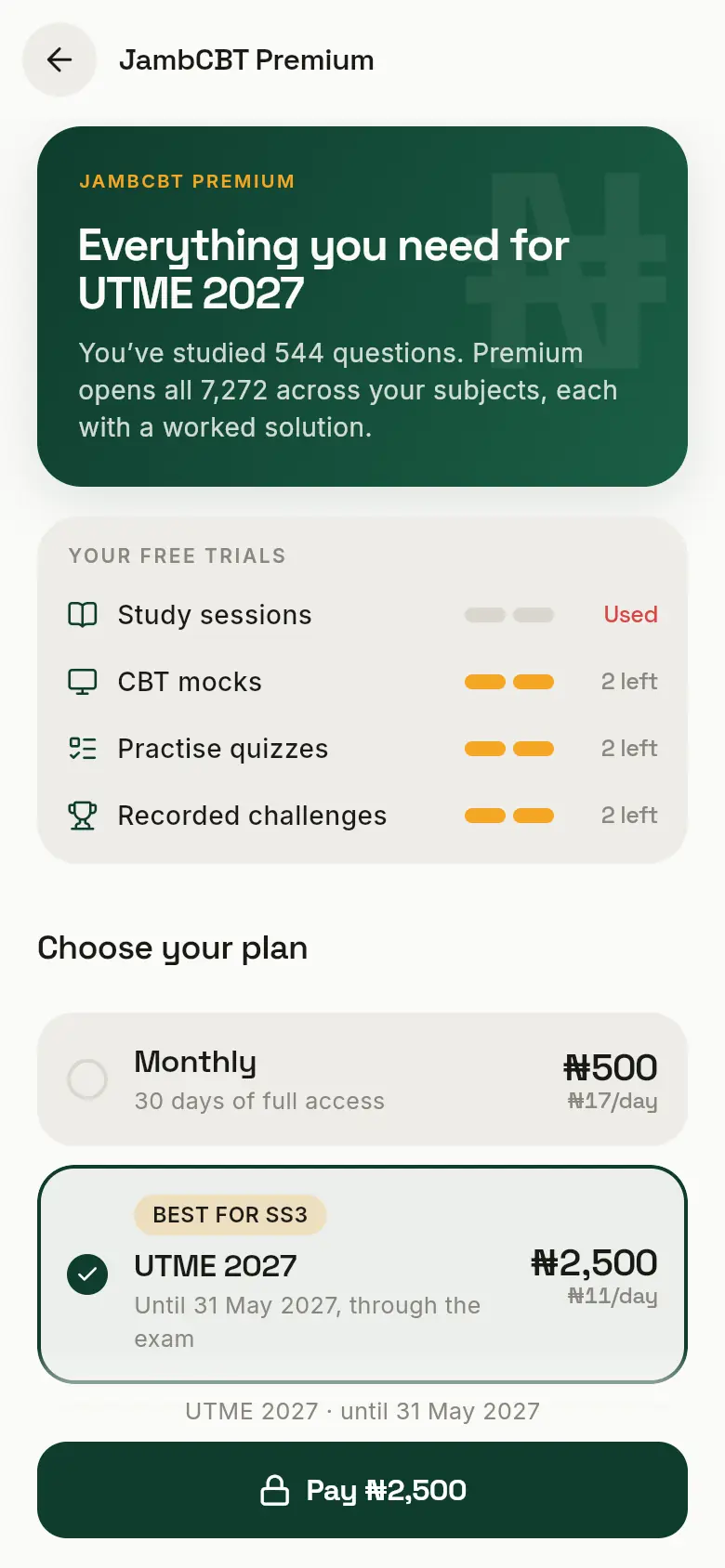
- 3Your free tries: how many you have left of each.
- 4The plans: Monthly, UTME (until the end of this year’s UTME), and Annual. Prices are on the page.
- 5Tap a plan to choose it.
- 6Pay. Paystack handles the payment, by card, bank transfer or USSD. JambCBT never sees your card details. The payment page and your receipt show Upperkai, the company behind JambCBT.
Want a parent to pay? Below the plans, tap Ask a parent to pay. It sends them a link on WhatsApp. When they pay, your Premium switches on.
 1
2
3
1
2
3
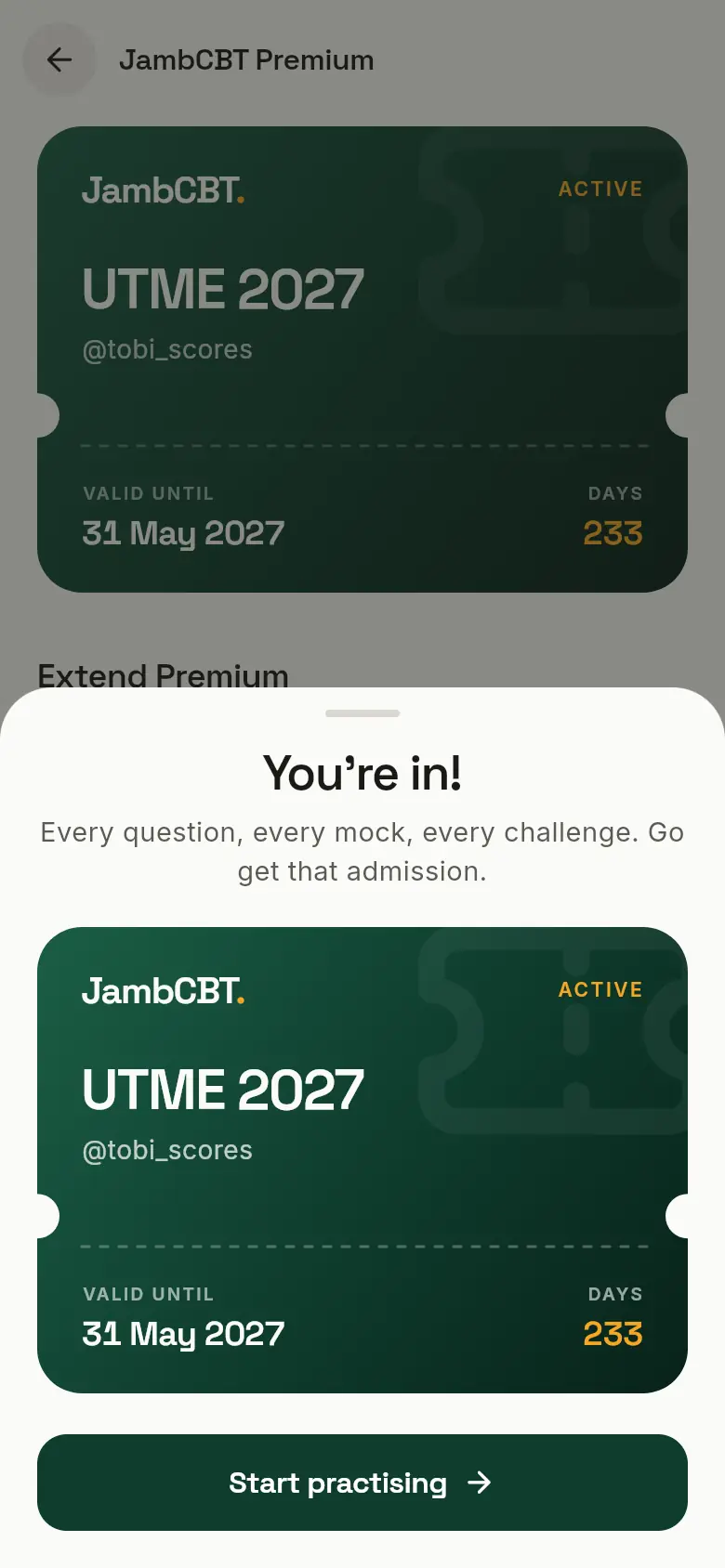
- 1Your Premium plan, with your username.
- 2When it ends, and the days left.
- 3Start practising.
Premium works wherever you sign in to your account: phone, laptop or a friend’s device.
10. Notifications and installing
Notifications
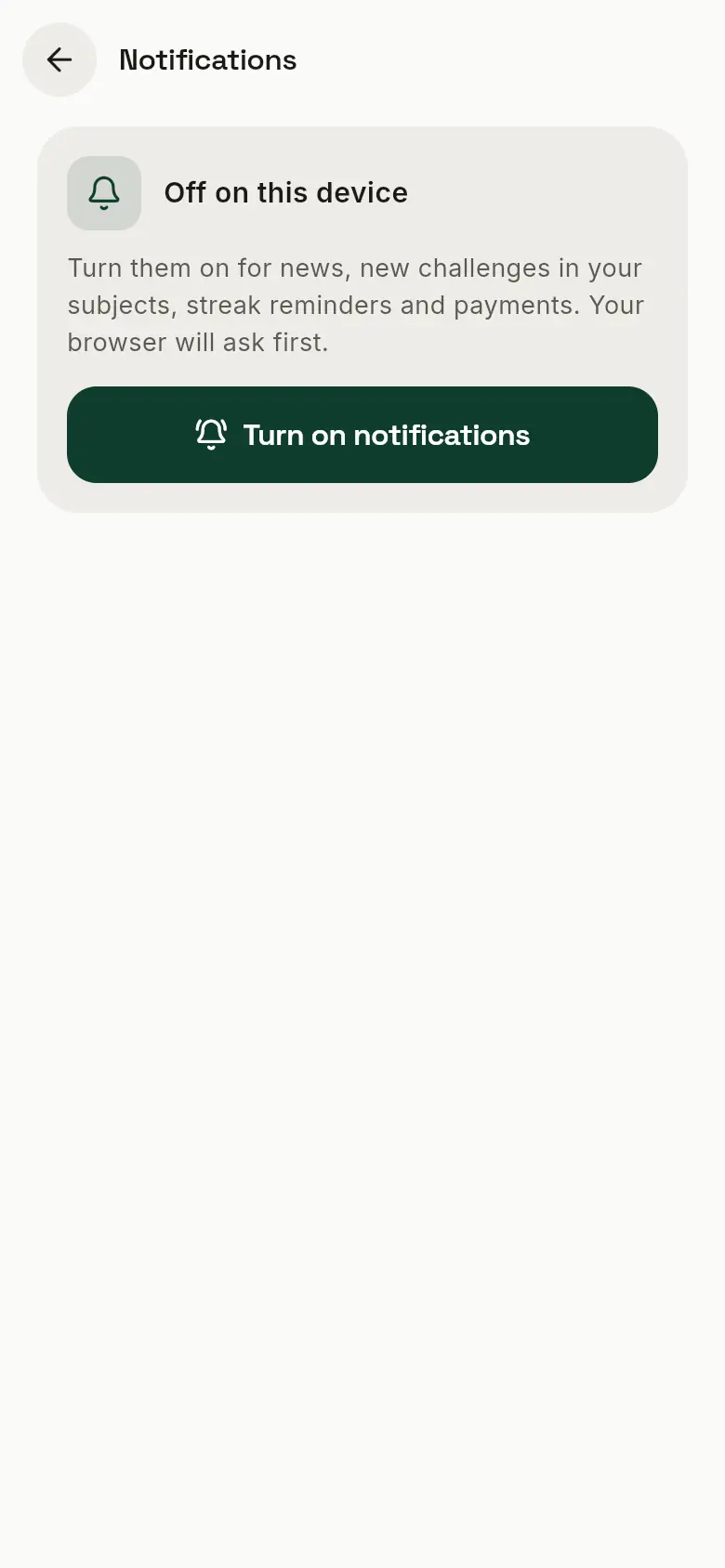
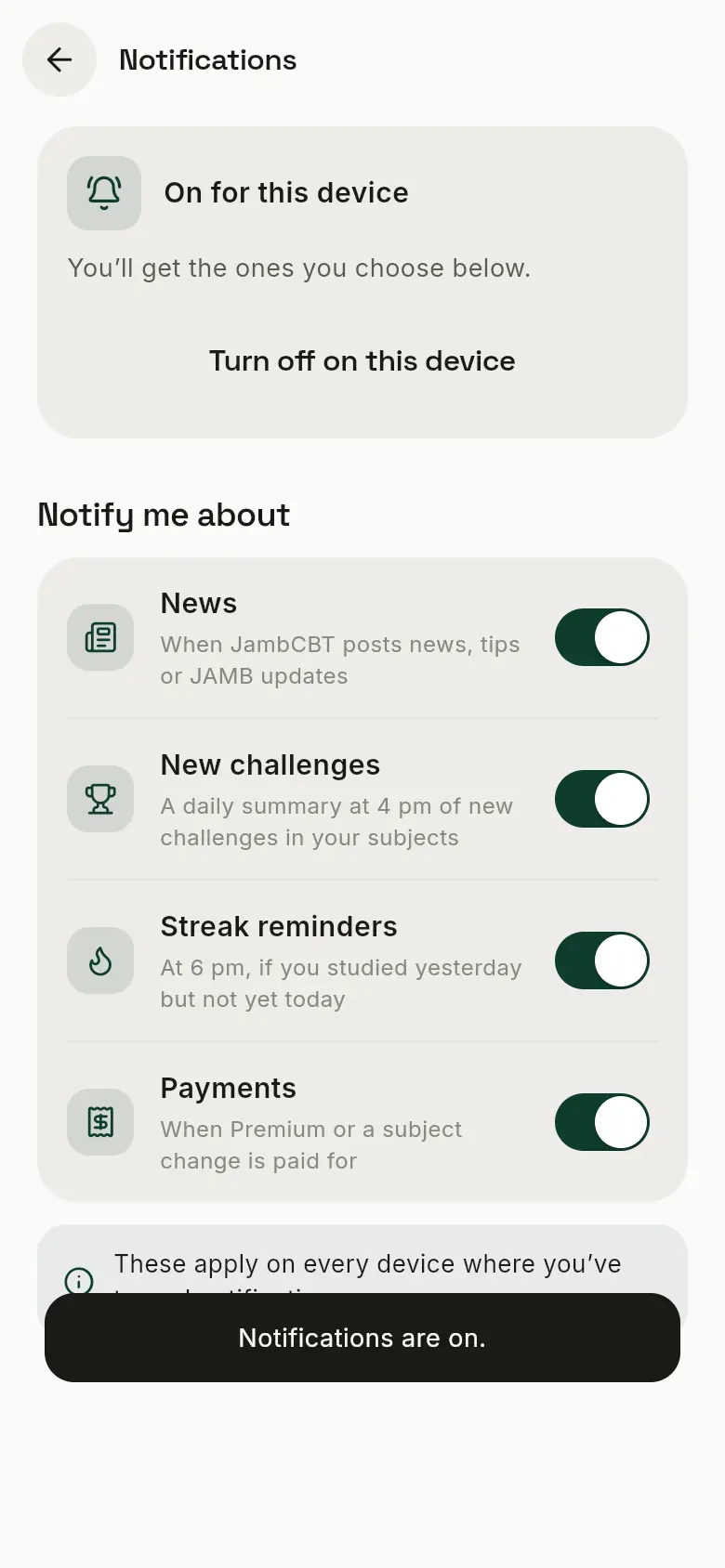
JambCBT can remind you to keep your streak, and tell you about news and new challenges in your subjects. Turn them on from the home page card or from Account → Notifications.
 1
1
 2
3
4
5
6
2
3
4
5
6
- 1Tap Turn on notifications, then Allow when your browser asks.
- 2They’re on for this phone or computer.
- 3News: when JambCBT posts news, tips or JAMB updates.
- 4New challenges: one summary at 4 pm of new challenges in your subjects.
- 5Streak reminders: at 6 pm, if you studied yesterday but not yet today.
- 6Payments: when your Premium is paid for, even by a parent.
On an iPhone? Add JambCBT to your home screen first (below), then open it from there and turn notifications on.
Put JambCBT on your home screen
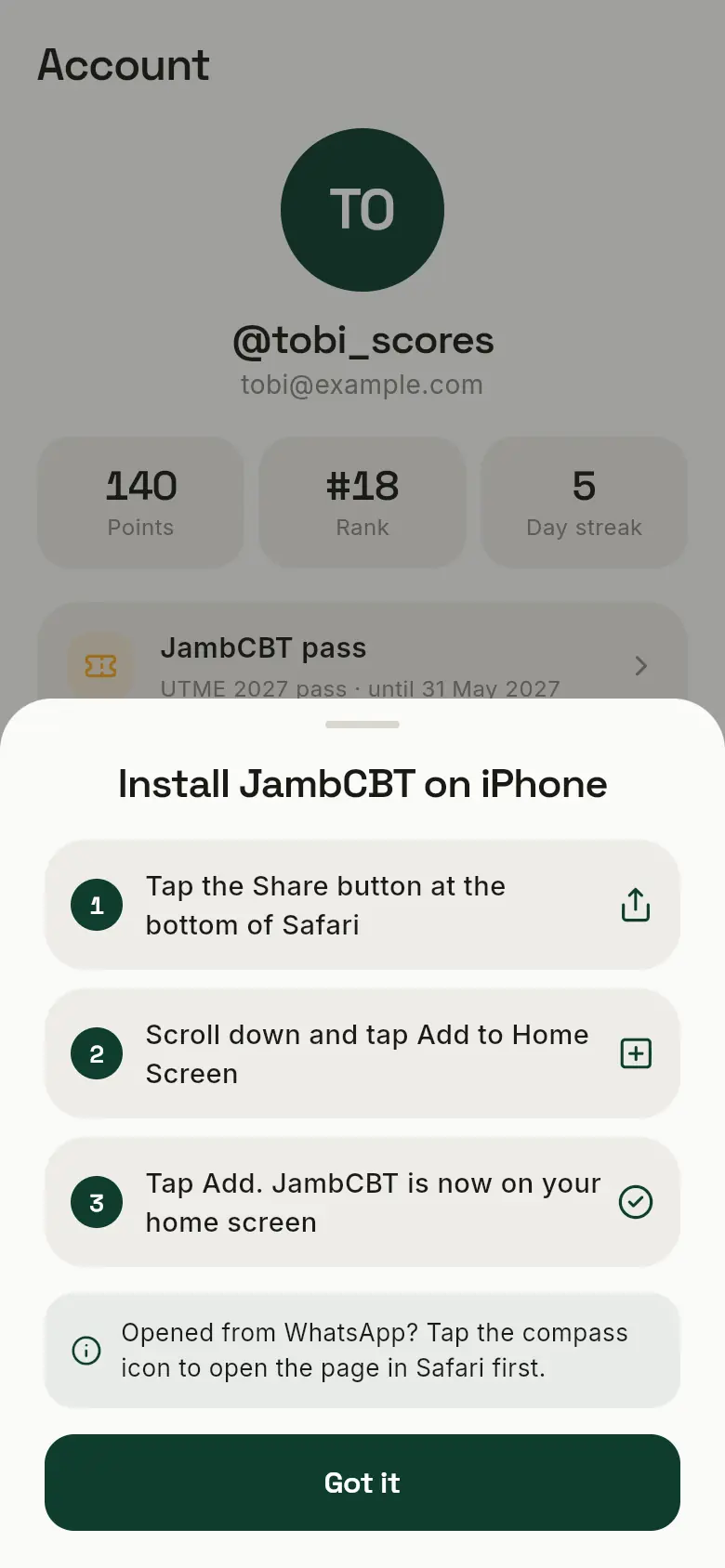
JambCBT opens like an app, without an app store or a big download. Go to Account → Install JambCBT and follow the steps for your phone.
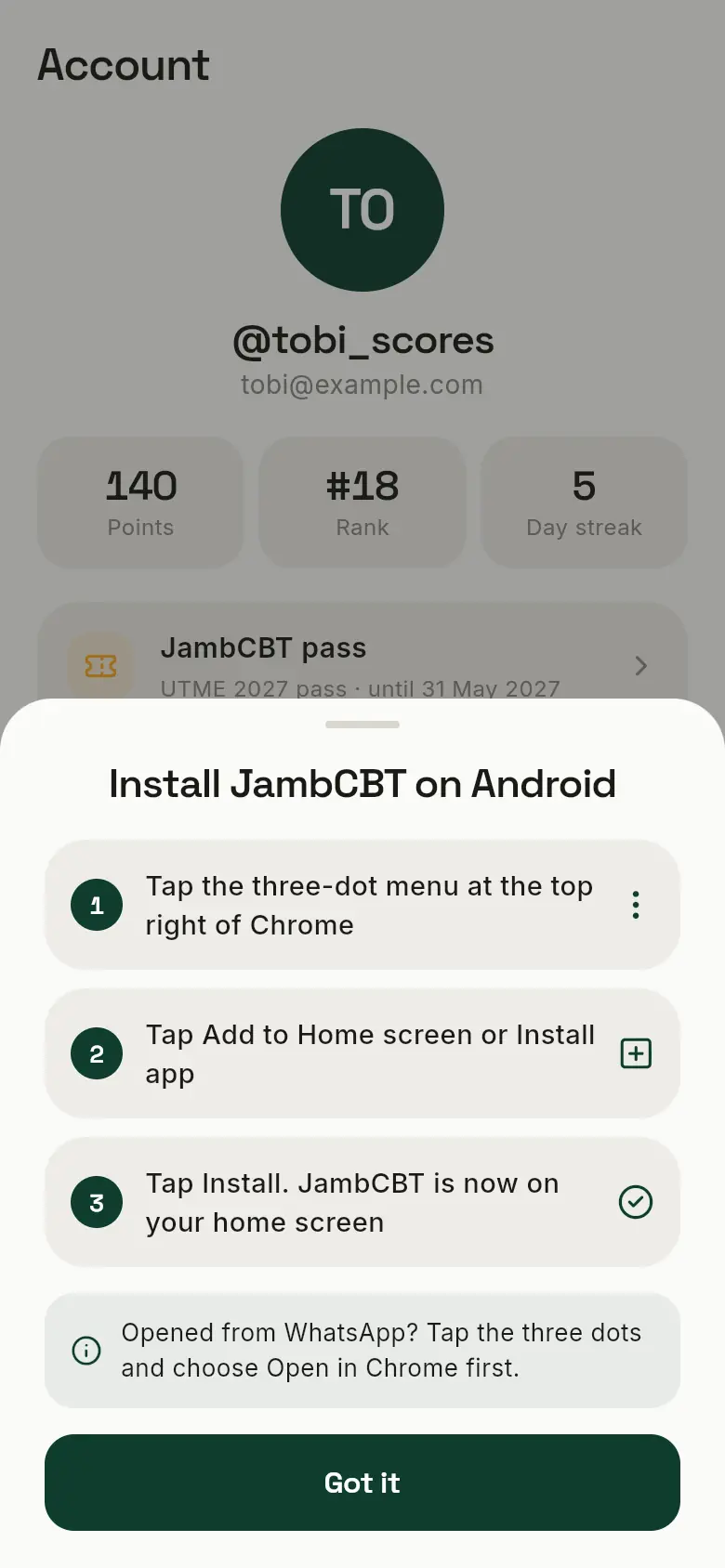
- Android, in Chrome: JambCBT usually offers to install with one tap. If it doesn’t, open Chrome’s three-dot menu and tap Add to Home screen or Install app.
- iPhone, in Safari: tap the Share button, then Add to Home Screen, then Add.
- Opened the link inside WhatsApp? Open it in Chrome or Safari first. WhatsApp’s own browser can’t install apps.
11. Questions students ask
 1
2
3
4
5
6
1
2
3
4
5
6
 7
7
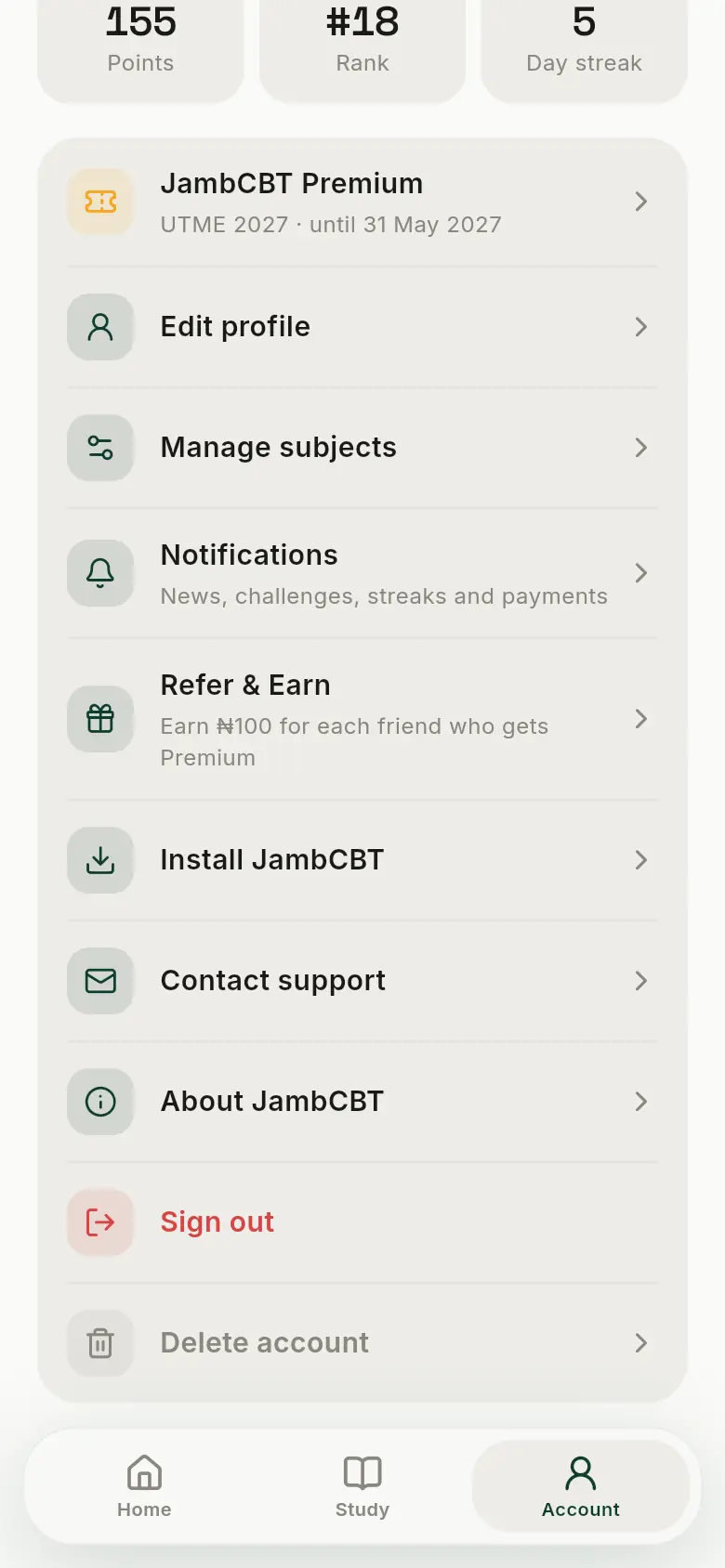
- 1Your Premium, and when it ends.
- 2Edit profile: your username and location.
- 3Manage subjects: change your subjects (there’s a fee).
- 4Refer & Earn: your link, and what you’ve earned.
- 5Contact support: WhatsApp or email us.
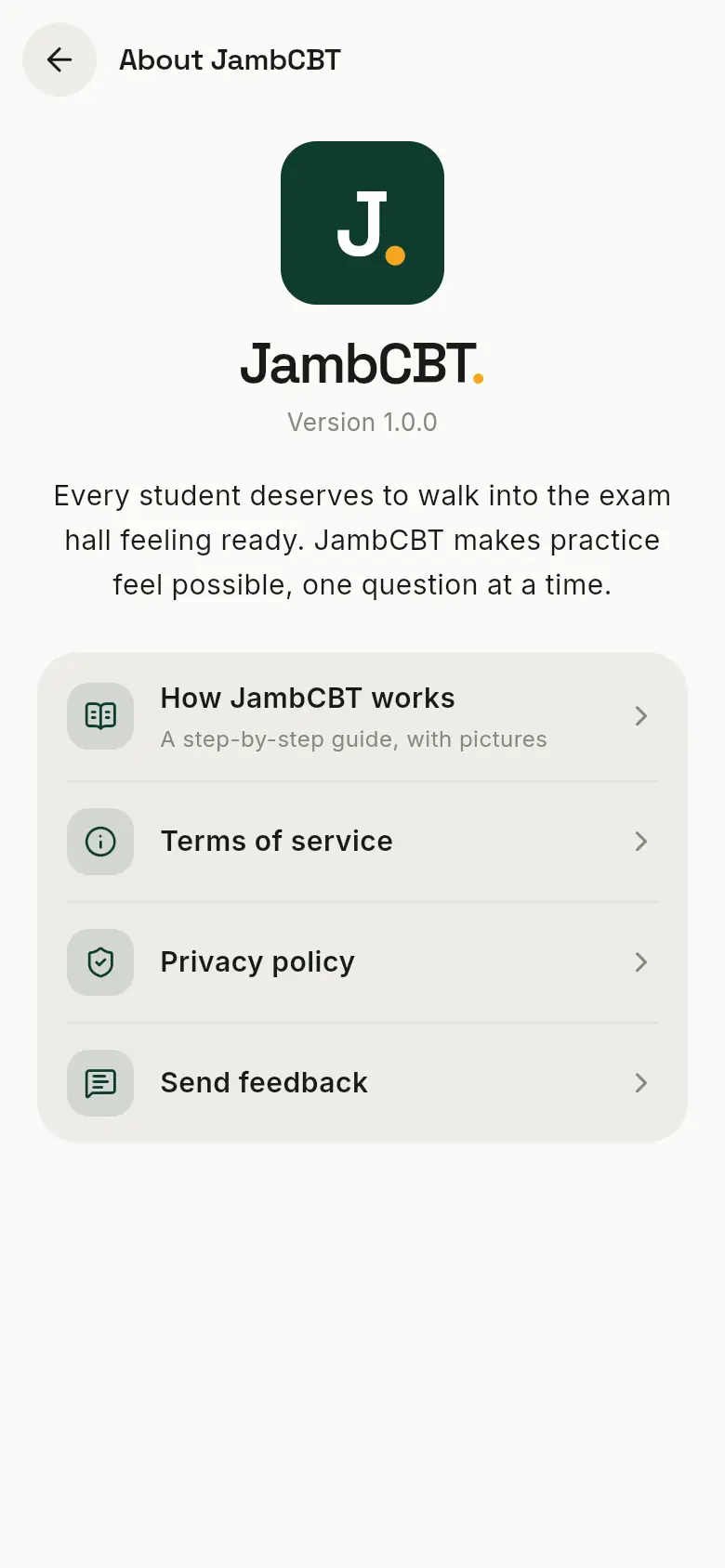
- 6About JambCBT: this guide, our terms and privacy policy, and a way to send feedback.
- 7How JambCBT works: this guide.
Can I use JambCBT on more than one device?
Yes. Sign in with the same email or Google account and your account, Premium and points come with you. Your subject progress (Coverage, Readiness, Retention and streak) stays on the device you practised on. Notifications are turned on separately on each device.
I forgot my password.
On the sign-in page, tap Forgot password? and enter your email. We’ll send you a link to choose a new one. Check your spam folder if it doesn’t arrive.
Why does Study show the answer straight away?
Study is for learning: you read the question, the answer and how to get there. To test yourself, take a Practise Quiz or a CBT mock, where you pick the answers against the clock.
My Readiness went down. Why?
Readiness follows your accuracy in quizzes, mocks and challenges, so a tough one can lower it. Review the questions you got wrong, keep practising, and it will climb again. See how the numbers are worked out.
Why can’t I create a challenge?
Creating challenges unlocks at 100 points. Earn points with CBT mocks, challenges and studying (see Leaderboard and points).
I paid, but my Premium isn’t showing.
It usually switches on within seconds. If it hasn’t after a few minutes, contact us from Account → Contact support with the payment reference from your Paystack receipt, and we’ll sort it out.
I think a question or answer is wrong.
Tap the question’s reference (like PHY-2024-01, at the bottom of the question) to copy it, and send it to us from Contact support. We’ll check it.
Is JambCBT run by JAMB?
No. JambCBT is an independent practice app. The questions are from past JAMB UTME papers.
Who is Upperkai? I saw it when I paid.
Upperkai is the company behind JambCBT, so payments for Premium go to Upperkai. That’s the name on the Paystack payment page, your receipt and your bank statement. You’ll also find it under Account → About JambCBT.